
Create GIFs and APNGs with KrobClick: Set Timing and Check Files Before Use
The stills are in order, but the GIF plays too fast and the edges look rough. Check each frame's duration and the output format before shrinking the images: these problems have different fixes.
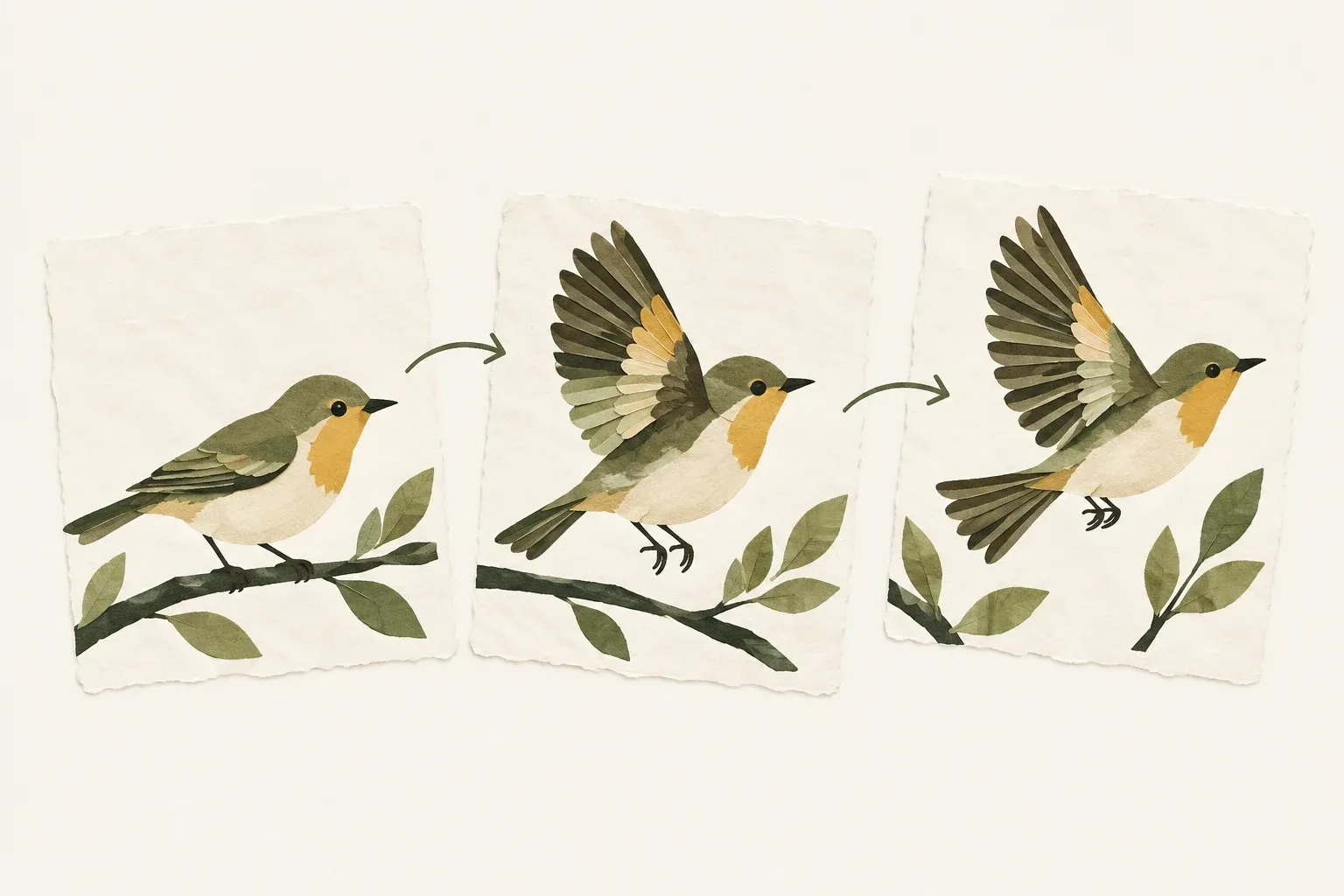
If you are making animated stickers for LINE, use LINE Animated Sticker Studio instead. It has separate slots for each sticker, the main image and tab image, and checks the requirements before packaging a ZIP. An APNG exported by a general GIF/APNG tool is not necessarily eligible for LINE.
Prepare still images and verify their actual order
Start with GIF/APNG maker with 1–40 still PNG, JPEG or WebP images. You can add more later; they go to the end of the sequence. Check the thumbnails for the actual playback order rather than trusting the file picker's name order. If a frame is misplaced, drag its thumbnail to an insertion marker with a mouse or touch, or use the previous/next buttons with a keyboard. Reverse flips the entire sequence, keeping each duration with its image. “Delete” removes only the selected frame, and there is no undo.
The output canvas can be 16–640 pixels on each side. The tool centers each image without changing its proportions, leaving unused space transparent rather than cropping images with different aspect ratios. Each source file must be at most 20 MiB, all source images together at most 60 MiB, and the total output across frames at most 16 million pixels. For example, 40 frames at 640 × 640 exceed that limit; reduce the canvas size or frame count.
Per-frame timing changes rhythm more than a single FPS value
The default duration applies only to newly added images. To change existing frames together, press “Apply this duration to all frames”; otherwise edit the duration beside the frame you want to hold longer. Durations are in milliseconds (1,000 ms is one second). Three hypothetical frames set to 200, 200 and 600 ms take about a second per loop, with the last frame visible longer. You do not need to duplicate it.
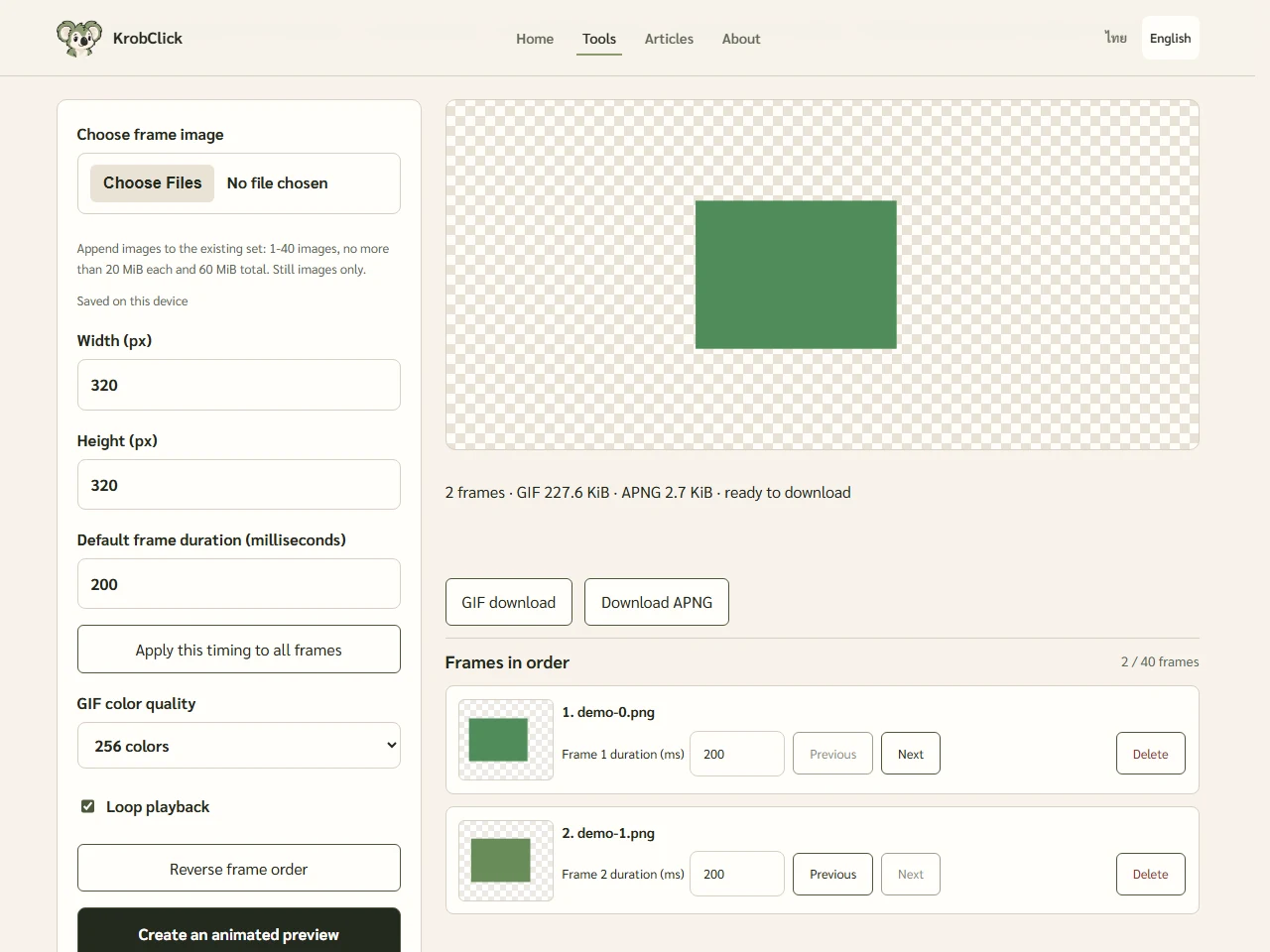
Frame durations can range from 20 to 10,000 ms, but GIF stores them in 10 ms increments, rounding other values to the nearest increment. The viewer may also impose a speed limit. Open the file where it will actually appear, and avoid intense flashing.
GIF and APNG differ in color and transparency.
For soft shadows or partly transparent edges, try APNG first: it retains transparency levels and frame colors without reducing the color count. GIF from this tool uses a fixed 256-color palette, or an optional 64-color palette, with pixels either opaque or transparent. Edges may look rough. Choosing 64 colors does not guarantee a smaller file. Some sites accept only GIF or show APNG as a still image.
The page preview is APNG, so it cannot tell you how the GIF colors will look. Open the downloaded GIF to check. This GIF encoder does not use advanced compression, so its files may be larger than those from other tools even with the same images and timing. If the file exceeds the destination's limit, reduce canvas dimensions or remove unnecessary frames, and keep the source files separately.
Check the file at its destination before sharing
The project is saved automatically in this browser's IndexedDB, including source images, thumbnails, order, durations, size, palette and looping. You can return in the same browser profile, but must generate a new preview before downloading: the output file is not saved with the project. Projects do not sync across devices, someone using the same profile may see them, and the browser may clear them. Download finished files for safekeeping; use “Clear data” to remove the project and saved image copies.
After changing a setting, regenerate the preview and check timing, loops, colors and edges in the downloaded file. If the destination supports both, compare GIF and APNG. The tool cannot split video or existing GIF/APNG into frames and cannot add audio. If still images are too large before assembly, see the Guide to resizing and compressing images
Sources
Example timings and dimensions are hypothetical settings. Target programs may handle animation and timing differently; check the downloaded file again.