
How to Fix JSON Errors: Check Brackets, Quotes, and Commas with KrobClick
You paste JSON from a chat into another system and get a SyntaxError. The brackets look complete. Keep the original, then check whether a comma, quotation mark or capitalized constant is tripping up the parser.

The tool can tell you whether JSON parses
KrobClick JSON Formatter has buttons for Format and check, Minify JSON, Copy result and Clear (as shown on the tool page). Processing happens in the browser without uploading data to the server. Use non-sensitive sample text to locate a syntax problem and make spacing easier to read.
When the tool parses a document, that establishes JSON syntax only. It does not establish whether fields match an API or amounts, names and dates are correct. RFC 8259 defines JSON more strictly than some JavaScript object syntax.
Four common reasons JSON will not parse
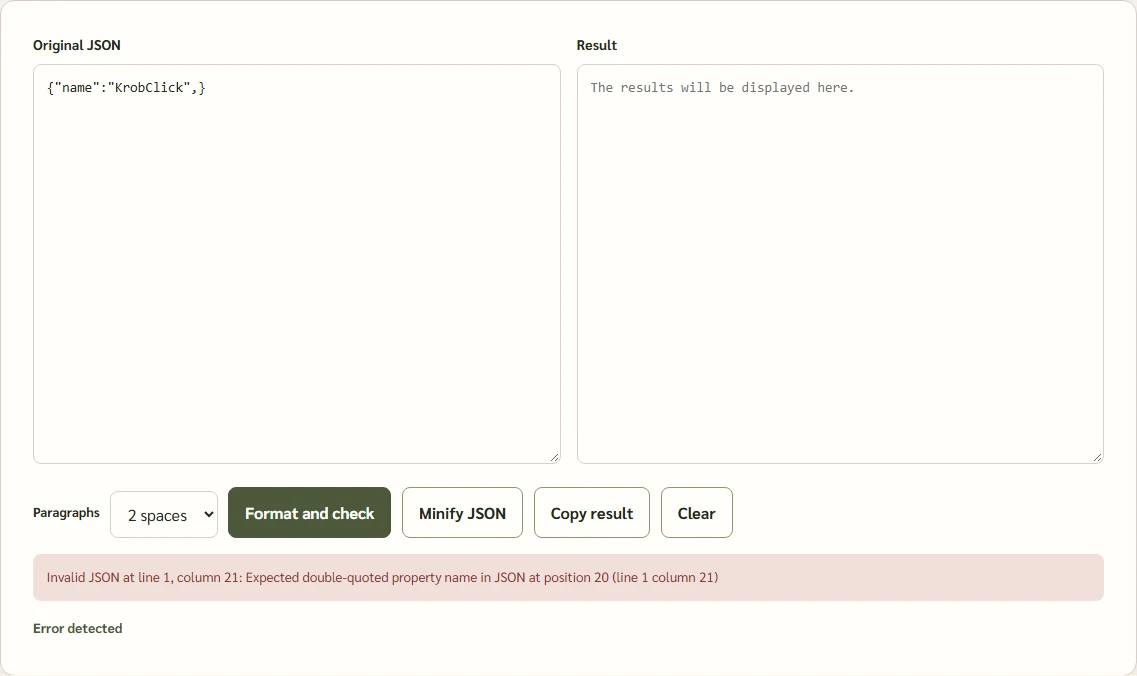
First, check for a trailing comma. JavaScript may allow it in some contexts, but JSON does not. The first example fails:
{"name":"KrobClick",}Remove the final comma:
{"name":"KrobClick"}The next example puts single quotes around a key and its value. JSON requires double quotes:
{'name':'KrobClick'}Replace them with double quotes:
{"name":"KrobClick"}A key without quotes also fails:
{active:true}Put double quotes around the key:
{"active":true}Finally, these capitalized constants are not valid JSON:
{"active":True,"note":None}Write the constants in lowercase:
{"active":true,"note":null}All examples are hypothetical. The rules for double quotes and the constants true, false, null are in RFC 8259 and examples in MDN JSON.parse() Fixing syntax can change meaning, so compare the result with the original data.
Keep the original, then edit in JSON Formatter
- Make a copy of the original text so you can recover if an edit changes its meaning.
- Open JSON Formatter paste Non-confidential sample information into the original JSON field
- Press Format and check and read the error message, then correct the relevant part of the original.
- Choose a 2- or 4-space indent and press Format and check again, then check the keys and values.
- Once you have compared the output, press Copy result or use Minify JSON if you need a shorter string.
The tool parses and recreates JSON in JavaScript. Very large integers can lose precision, especially account or identification numbers stored as numbers. Do not use the reformatted result for financial data requiring exact digits without comparing it with the source.
If you copied text from a chat with a ```json wrapper, copy only the data inside: the wrapper is Markdown. If an error appears near the end, look earlier for an unclosed quote or bracket. Do not add punctuation until it parses without checking whether values changed.
It parses, so why does the API still reject it?
Suppose an API requires the amount to be a number. This example has the required type:
{"amount":150,"currency":"THB"}The next example also parses, but puts the amount in quotation marks:
{"amount":"150","currency":"THB"}If the schema requires a number, the latter may be rejected. RFC 8259 also warns about duplicate object keys, which systems may interpret differently. When JSON.parse() parses duplicate keys and creates new output, the earlier value disappears and the last one remains. Check for duplicates even when parsing succeeds.
Check the output before using it
The formatter cannot verify an amount or the source of data, and APIs do not all use the same schema. Although it runs in the browser, do not paste passwords, API keys or sensitive data on a shared or public computer.
Check syntax first, then compare field types with the receiving system's requirements. Finally compare important values against the source, particularly long numbers and possible duplicate keys.
Sources
RFC 8259, MDN, and KrobClick source reviewed October 15, 2026. This does not verify production operation. JSON examples illustrate syntax, not real user data.