
PDF Redaction: Remove Content and Verify Before Sharing
If a PDF contains an account number or another person’s name, a black bar on the screen may give false reassurance. The information beneath it can remain in the file. This guide separates covering up information from removing it, then shows what to check in the copy you send.
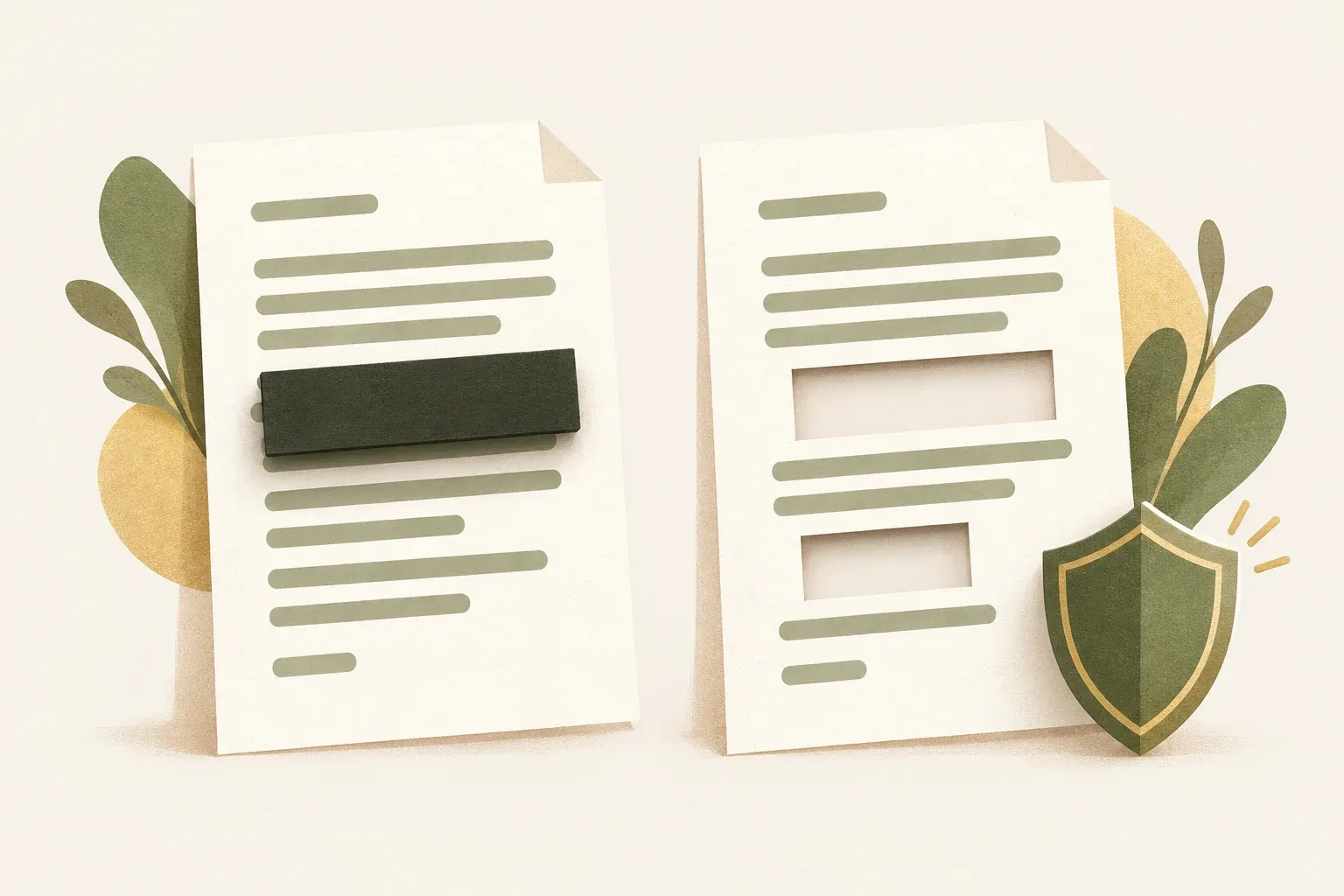
Redaction removes information rather than merely hiding it
In a PDF file, the black bar may just be an object placed over the original text. Therefore, the recipient may still be able to search, copy, or read the text from the file structure. Redaction must remove the information from the copy to be sent, not just make it invisible.
The Adobe Acrobat Pro guide says to mark the area first, then click Apply to remove the selected content. Marking alone does not remove it. The guide also includes a step for sanitizing hidden information before saving.
Changing the font color, cropping the page, or setting a password may help with the display or opening of the file, but none of these methods can replace deleting data from the copy.
Why apparent concealment may still leave data exposed
| Method | What happened | Can it be used for redaction? |
|---|---|---|
| Draw a black box/opaque highlight | May add an object layer over the original text | Do not assume actual removal |
| Crop page margins | May change only the displayed part | Do not assume data outside the crop is deleted |
| Set PDF password | Restrict opening or use by system | Does not remove underlying data |
| Use Redact, then Apply | A supported tool removes content at selected locations | Yes, in the removed area, when saved and verified correctly |
| Sanitize / Remove hidden information | Delete certain types of hidden data, such as metadata, comments, and attachments. | It helps, but the chosen scope and results must be examined. |
This table compares the principles of each method and does not test every brand of tool. Converting an entire page into an image may make the text unsearchable and reduce accessibility, but it does not guarantee that the original information will be lost. Adobe recommends using a tool that removes the content and saving a new copy.
Start by identifying data to remove and keeping the original separately
Keep the original document separate in a location accessible only to authorized individuals. Then, open a copy to work on. Go through each page to identify what needs to be removed: account numbers, phone numbers, addresses, signatures, or names of unrelated individuals. Do not overlook headers, footers, tables, and attachments.
The same information may appear repeatedly in different versions of the document. Mark the locations to be checked instead of deleting only the first instance that catches your eye. Scanned PDFs may have an OCR text layer underneath the image, and inserted notes may contain another set of information.
If the document is required as evidence or to preserve a digital signature, first ask the recipient or an expert which type of copy is acceptable. Modifying the file may affect the attributes that need to be preserved.
Example steps in Acrobat Pro: Mark → Apply → Sanitize → Save
The following menu steps come from Adobe’s Acrobat Pro documentation dated August 31, 2026. Menu names may vary by version or language; not every free PDF reader has this tool.
- Open a document copy: Check the page and select the menu. All tools > Redact a PDF
- Mark: Select Redact text and images then drag to select the area to remove, checking that necessary data is not removed unnecessarily
- Apply redactions: Select Apply to perform deletion, rather than stopping at marking
- Manage hidden data: In the confirmation dialog, consider enabling sanitize and remove hidden information as appropriate then continue
- Save as a new file: Name it separately from the original and keep a separate copy for sharing.
Adobe Sanitize Guide explains that hidden information can include metadata, comments, hidden layers, and other content. Depending on the options, you can choose Remove all or Selectively remove. Removing everything could also strip data you need.
Verify the saved copy, not only the editing preview
Open the saved copy in a new window or another PDF reader. Search every page for the words and numbers you intended to remove, then try selecting and copying text in the redacted areas. If any remains, stop and correct the file before sending it.
Review metadata, comments, attachments, and OCR layers. Links or annotations may unintentionally reveal the original text. At the same time, check that the content the recipient needs to read is still complete.
Hypothetical example: A four-page PDF has “AB-1234” on pages 1 and 4. Removing it from page 1 alone still leaves AB-1234 searchable on page 4. This is a hypothetical checking example, not a KrobClick test result.
Even if the search doesn't find anything, there may still be information in the image or in areas that the search can't reach. If the document is sensitive or is about to be made public, have another person review and approve it before sending.
Be careful with online services and verify before sharing
If you're going to upload personal documents to any website, first read how long the website stores files, where they are processed, and who has access to them. The labels "PDF Editor" or "Compress PDF" do not mean that the website has the ability to permanently delete data.
KrobClick PDF Editor works in the browser, but the Beta PDF Editor has not been verified to permanently remove sensitive data. Do not use overlaid text or objects to hide sensitive information. The steps here come from Adobe documentation, not a KrobClick test of Acrobat Pro. OCR adds searchable text; it does not erase information. Read more in the Scanned PDF and OCR guide
Before sharing, send only the checked copy through a channel acceptable to the recipient. Keep the original if you still have a legal or other duty to retain it.
Review the sharing copy, hidden data, and verification limits
Work on a copy in this order: Keep the original → Identify the location of the information → Use Redaction and Apply → Manage hidden information → Save a new copy → Check the copy to be sent. A black box alone skips the removal steps.
Even after completing the process, you still need to check how sensitive the documents are and what the recipient has specified. Deleting the wrong part or leaving information in a single attachment can potentially expose information that was intended to be kept confidential.
Sources
- Adobe Acrobat Pro: Redact sensitive content in PDFs (updated August 31, 2026)
- Adobe Acrobat Pro: Sanitize PDFs and remove hidden content
- Adobe Acrobat: Why and how to redact a PDF
This article explains from the source documents examined at 13 October 2026 and is not the result of testing the actual tools of KrobClick. The sample document numbers are fictitious data. The steps may vary by version. And visual inspection, searching, or copying does not guarantee that all hidden information has been deleted. It is not individual legal advice.