
Split an Image into A4 Poster Sheets with KrobClick and Check the Actual Size
An A4 printer can make a larger poster by splitting an image across sheets. Before printing the whole set, check the source image's resolution and disable automatic scaling in your PDF reader.
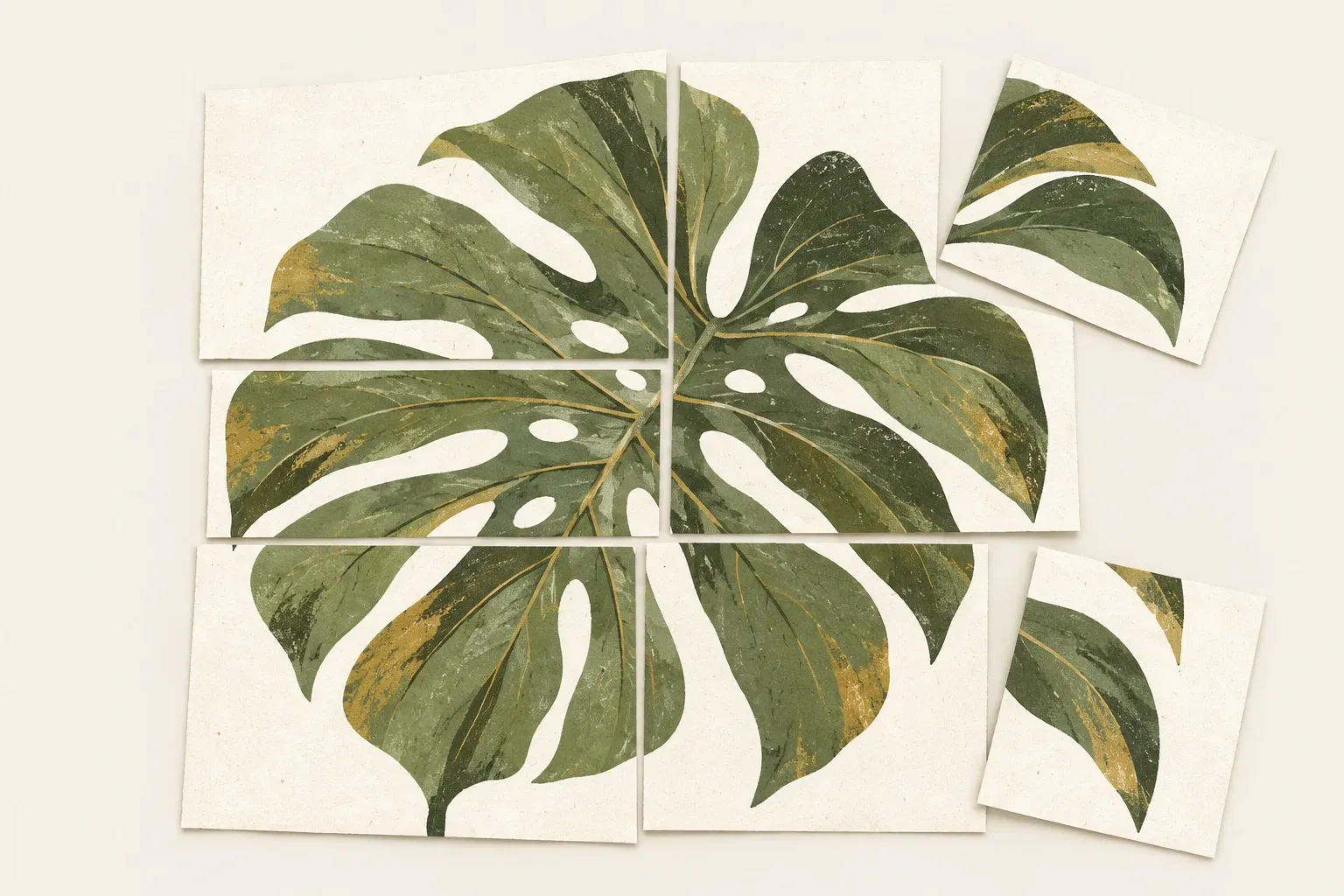
Set the poster size before selecting the number of sheets.
In Poster tiling tool choose a still PNG, JPEG or WebP image, then enter the desired width in centimeters. The tool calculates the height from the original proportions, so it neither crops nor stretches the image. If you need an exact height, crop the source first.
Suppose a 3,000 × 2,000 pixel image becomes a 50 cm wide poster. Its height will be about 33.3 cm. With portrait A4, 10 mm margins and 10 mm overlap, the image area on each sheet is 190 × 277 mm. You need 3 columns × 2 rows, or 6 sheets. Rotating the paper or changing the margins may change the count.
How overlap and seam points join images
The overlap repeats a strip of the image on adjacent sheets so you can align them before taping or gluing. Use the row, column and sheet numbers at the edge, then line up the circle-and-cross marks in the overlap. The thin line shows the image-area boundary. The last sheet may have empty space if the poster does not fill an exact number of sheets.
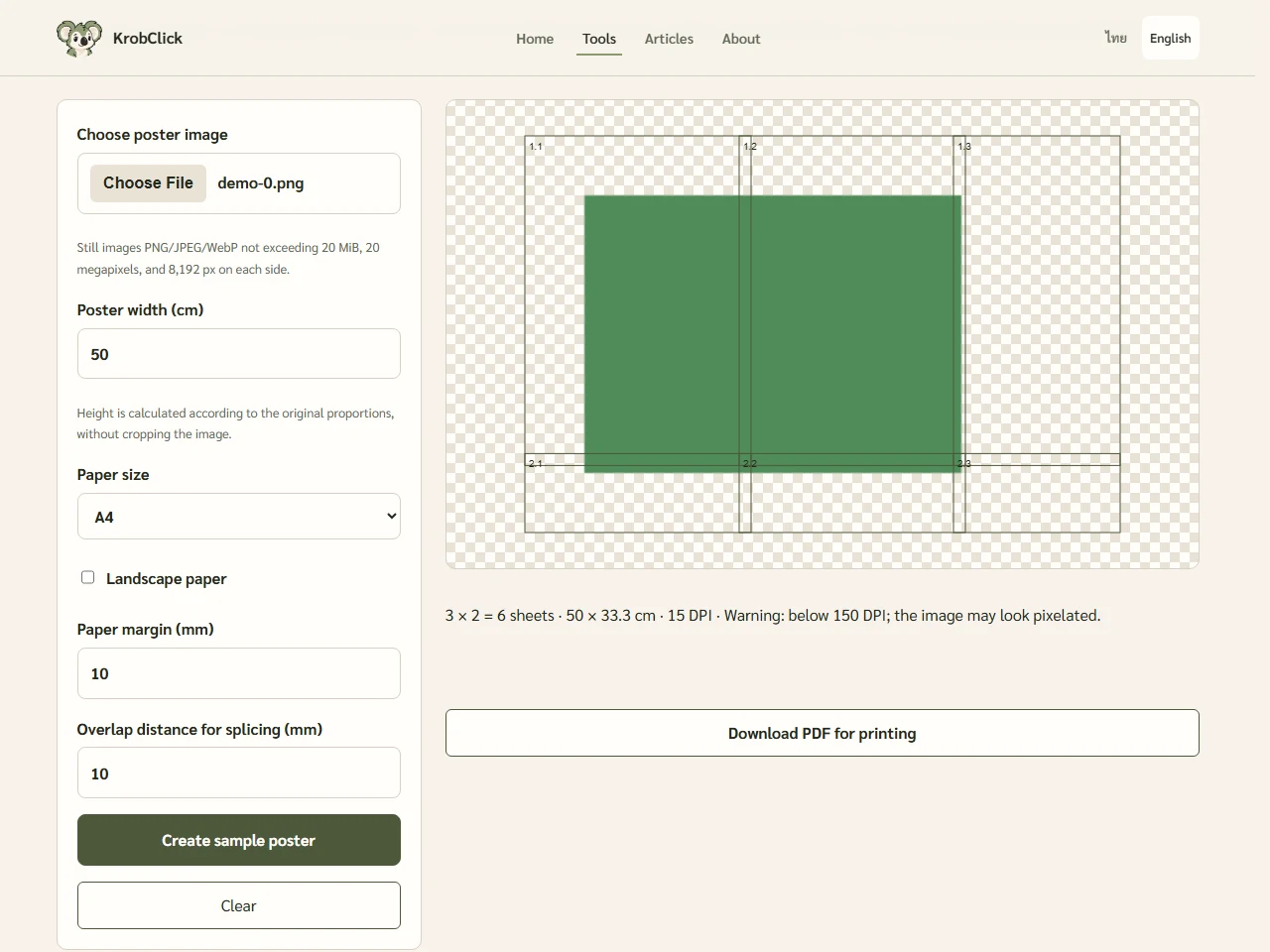
Check the DPI before enlarging the image.
Divide the horizontal pixel count by the width in inches to estimate DPI. The 3,000-pixel image in the example yields about 152 DPI at 50 cm wide, or about 76 DPI at 100 cm, without gaining any detail. The tool warns below 150 DPI. That threshold is a prompt to inspect the image, not a print-quality guarantee. Small text may need more detail; a poster seen from farther away may tolerate less.
Try printing one sheet at 100%.
- Generate a preview, check its proportions and sheet count, then download the PDF.
- In the PDF reader, match the file's paper size and orientation. Select Actual size or 100%, disable Fit to page, and do not apply poster tiling a second time.
- Print one sheet first. Measure it and check for clipped edges; print the rest only if it is correct.
- Sort sheets by row and column, trim the edge that will overlap, then align the repeated image and registration marks before joining them.
The image must be at most 20 MiB and 20 million pixels, with neither side over 8,192 pixels. One project can produce at most 100 sheets. Processing stays in the browser. If you want one image per PDF page rather than one large image assembled from sheets, see the Guide to combining images into PDF
Sources and verification methods
The sample dimensions follow the stated settings. The 150 DPI warning is a tool threshold, not a guarantee of print quality.