
Hermes on Discord: Bot Setup, Permissions, and Sessions
Your Hermes bot is online in Discord, but silent in a channel, or replying to everyone. Online status only confirms a connection. Configure who can call it, where it replies and how sessions are separated before using it. This guide covers setup through log-based troubleshooting.
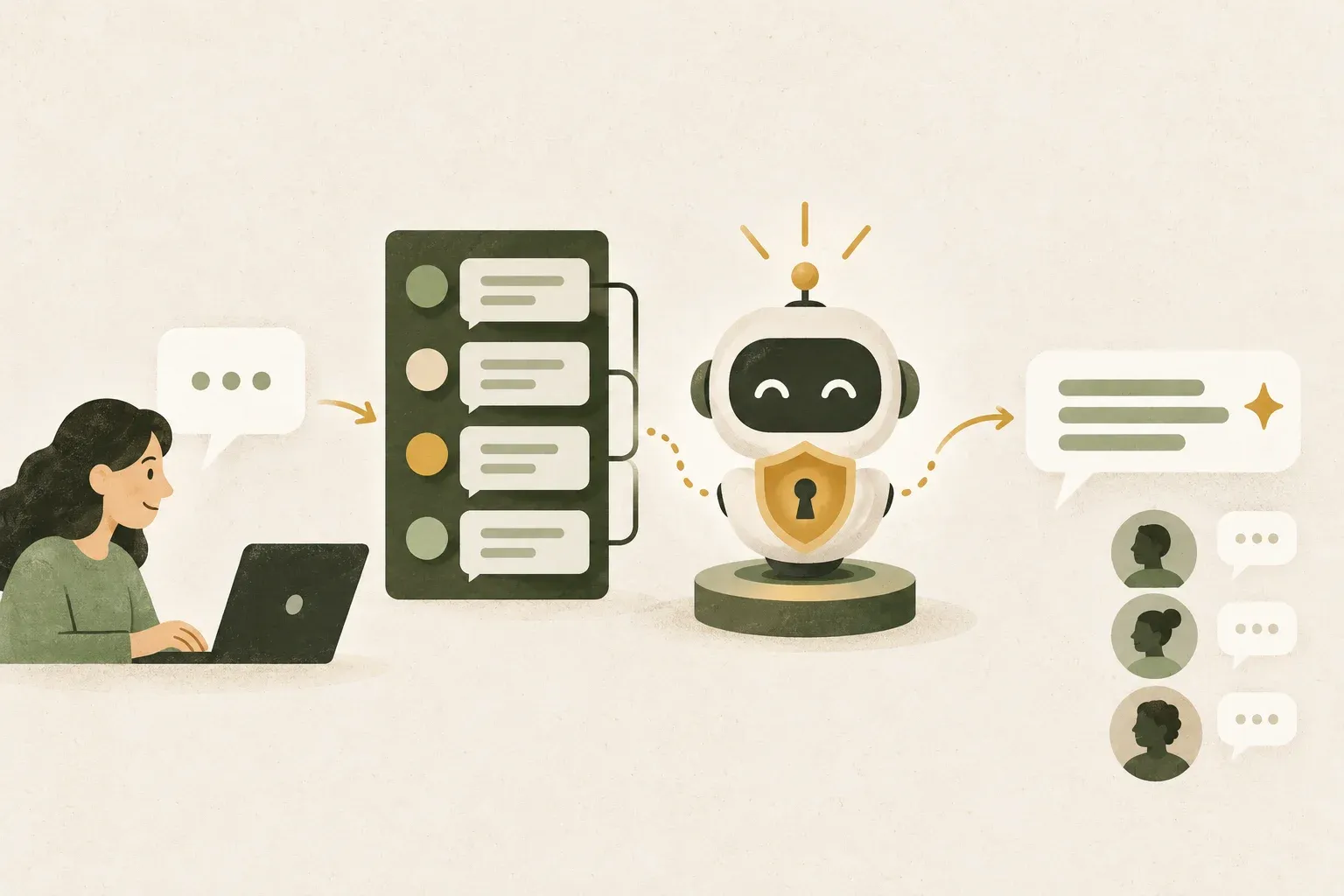
Discord carries messages while Hermes Gateway runs the agent’s work
When a message arrives, Hermes Messaging Gateway checks the user, channel and mention, selects a session and loads its context before the agent loop calls a model or permitted tools. Discord carries messages; it does not run the agent.
ผู้ใช้ใน Discord
→ Discord Gateway event
→ Hermes Messaging Gateway
→ ตรวจ allowlist / channel / mention
→ โหลด session และบริบท
→ Agent เรียกโมเดลและ tools ตามสิทธิ์
→ ส่งคำตอบกลับ DM, channel หรือ thread
An online status is not enough. The machine running hermes gateway must stay on and reach its provider. If events stop arriving, the bot may go offline or fall silent, and cron jobs that depend on the Gateway may miss their schedule. Check the local process and its connection.
Create a Discord Application and enable only the intents Hermes needs
In Discord Developer Portal, create an application and open its Bot page. Enable Message Content Intent so Hermes can read incoming messages. Hermes documentation recommends Server Members Intent when allowlisting usernames or roles; ordinary messaging does not require Presence Intent.
- Create an Application and open the Bot page
- Create or reset the token, then copy it for one-time use in the setup wizard
- Enable Message Content Intent
- Enable Server Members Intent when using a username or role allowlist
- Press Save Changes before leaving the page.
Do not post the bot token in a channel or give it to an agent to analyze: it authenticates the bot. If exposed, reset it in the Developer Portal and replace the local value. Deleting the message does not secure the old token.
Grant only the server permissions the bot needs. Hermes lists View Channels, Send Messages, Embed Links, Attach Files and Read Message History as core permissions. Add Create Public Threads and Send Messages in Threads for threads, or Connect/Speak for voice channels. The inviter needs Manage Server permission.
Use Gateway setup to configure tokens and allowlists rather than admitting everyone
First check that Hermes can talk to its provider through the CLI. Once that works, configuring Discord separately makes model-access problems easier to distinguish from messaging problems. Then open the Gateway setup assistant:
hermes gateway setupSelect Discord and enter the bot token in the setup prompt. The assistant checks it with Discord, warns if Message Content Intent is disabled, builds an invite link and offers to add the bot owner to the allowlist. Normally you do not need to copy a user ID manually.
If you need to set it yourself, the secret and allowlist values are in ~/.hermes/.env:
DISCORD_BOT_TOKEN=ใส่-token-จริงในไฟล์บนเครื่องเท่านั้น
DISCORD_ALLOWED_USERS=ใส่-Discord-user-id-ที่อนุญาต
The Thai values above are placeholders, not a real token. Do not commit the secret-bearing .env file. Once configured, run the Gateway in the foreground first:
hermes gateway runAfter it responds to a DM or mention in the foreground test, install the background service:
hermes gateway install
hermes gateway status
DMs, channels, and threads use different response rules and context.
| Area | Default | Context effect |
|---|---|---|
| DM | Answer every message, no @mention required. | Each DM has its own session |
| Server channel | Reply when the bot is @mentioned | Default separates sessions by user within the channel. |
| Free-response channel | Can reply without mentions in configured channels | Replies inline by default; use it only in rooms intended for conversations with the bot |
| Thread | Reply in the same thread under the configured mention rules | History is separate from the parent channel. Check require_mention and thread_require_mention for the actual software version. |
Test DMs first with an allowlisted user. In a server, keep require_mention enabled so the bot does not answer every message. Set a specific channel ID as free-response only if that room is intended for conversations without mentions.
Documents for the Hermes Agent Discord guide state the default for thread_require_mention to false. Once the bot joins a thread, later messages may reach it without another mention. Set it to true to require a mention each time. This setting is separate from require_mention in the main channel. Test messages both with and without mentions before use.
When several bots share a thread, the Hermes documentation recommends discord.thread_require_mention: true so they do not all answer the same message after joining. This helps avoid spam and unintended model calls.
Allowlist answers who can call, while Session determines who can see the shared context.
Hermes Discord access defaults to denying messages unless DISCORD_ALLOWED_USERS, a role, a channel scope or explicit allow-all is configured. The Gateway may connect while rejecting incoming messages, so check access policy first when an online bot stays silent.
- Use User IDs where possible: Does not change with the display name and does not require name resolution
- Use roles when team membership changes frequently: Those who receive the role will have rights according to the policy, but must open the Server Members Intent according to the conditions.
- Do not enable allow-all to fix a nonresponsive bot: Check the log and allowlist first because this kind of change immediately expands the user scope.
- Restrict commands separately from chat: The documentation supports an admin list and commands available to ordinary users, allowing conversations without granting everyone every slash command
By default, group_sessions_per_user: true keeps Alice’s and Bob’s histories separate even in one channel. With false, everyone shares the transcript, growing context, token cost and running-agent slot; one person’s message may continue or interrupt another’s work. Use shared sessions only where members accept that exposure.
When the bot is online but silent, check access permissions first
- Bot offline: Verify that the Gateway is running and that Message Content Intents are turned on. If Discord denies privileged intents, the connector will not be ready to receive messages.
- Bot online but silent: Check allowlist, role or channel policy in
~/.hermes/logs/gateway.logbecause missing access policies deny messages by default - Replies to DMs but not channels: @mention Bot directly, check View Channels/Send Messages permissions and see if the channel is in the ignored list or not.
- Replies the first time but goes silent later: Check the Gateway WebSocket status and log. Do not use the REST check results alone to determine whether the event stream is still working.
- Several people's contexts are mixed: check
group_sessions_per_userand consider separate threads for separate tasks - Multiple bots reply simultaneously: Open
thread_require_mentionand identify the desired bot with an @mention
After changing settings, restart and check status using Hermes commands rather than starting another process:
hermes gateway restart
hermes gateway status
hermes logs -f
After the DM test succeeds, enable only the needed channel, allowlist User IDs, retain mentions in the server and separate sessions by user. Understand the logs before adding free-response rooms, shared sessions, voice or multiple bots; each can widen message exposure or costs.
Sources
- Nous Research: Hermes Agent Discord Setup
- Nous Research: Messaging Gateway
- Nous Research: Hermes Agent Quickstart
- Discord Developer Support: What are Privileged Intents?
- Discord Developer Documentation: OAuth2 and Bot Users
- NousResearch/hermes-agent
Hermes and Discord documentation reviewed October 11, 2026. Developer Portal UI, privileged intents, defaults, and Gateway commands may change. Never publish bot tokens, API keys, or .env files in screenshots, repositories, or chat.