
Find your LINE add-friend QR code for a personal or business account
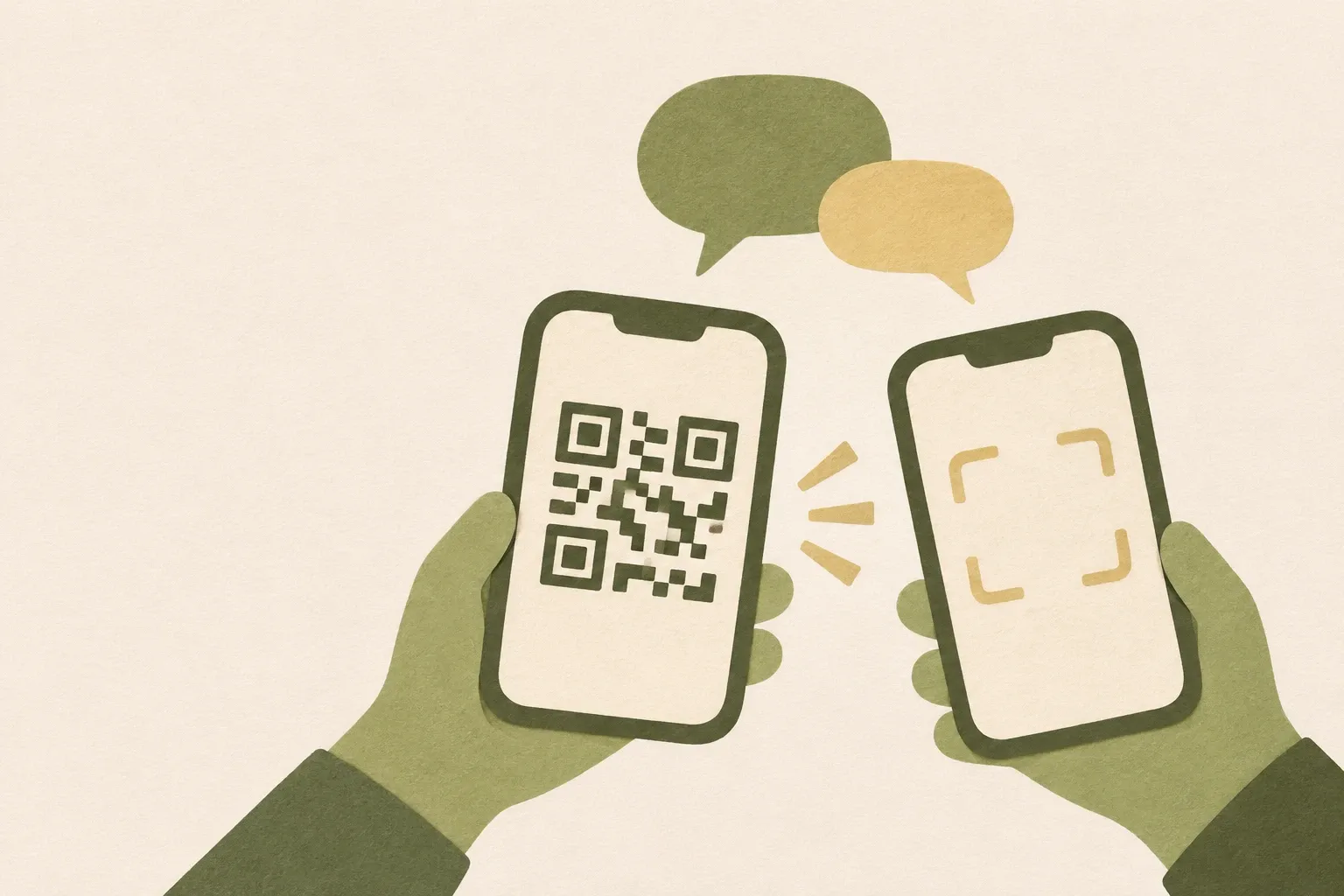
Personal and business add-friend QR codes can look alike, but they lead to different accounts. Before sharing one or putting it on a sign, scan it and check the account name.
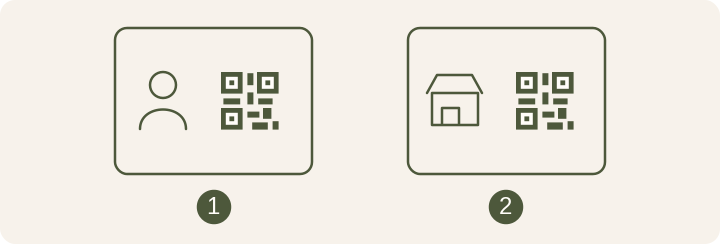
Choose which account people should add first
Use your personal LINE QR code when you want someone you know to add you. For a customer-facing sign, use the shop’s LINE Official Account code. Check an old saved image before reusing it; it might lead to a different account.
Find your personal LINE QR code
On a primary phone in Thailand, Japan or Taiwan, open Chats, tap the plus button at the top and select “My QR code.” Elsewhere, LINE says to open Home or Chats, tap the scan icon beside the search box, then select “My QR code.” The person scanning should check the name and profile photo before adding the account.
Cannot find those menus? LINE has separate instructions for primary and secondary devices. Open the section for the device you are using.
Open LINE’s guide to adding friends by QR code
Where to get a LINE Official Account QR code
In the LINE Official Account Manager app, open Home, go to Add friends, choose QR Code and save the image. On the Manager website, open Home and Add friends to download the displayed code. Check the account name first, especially if you manage several shops.
Test the code before sharing or printing
Ask someone who has not added the account to scan the actual file and compare the name and profile photo on their screen. If it is going on a sign, test it in the design and again after printing in case the edge was cropped or the surface reflects light. If it opens the wrong account, download the right code and replace the image in the design.
If the recipient is reading your message on the same phone they would use to add you, send an add-friend link instead when LINE offers a copy-link option. Share your personal account’s QR code only with people you are comfortable having as friends.
| What to check | How to test it |
|---|---|
| Does it open the right account? | Ask someone who has not added the account to scan it, then compare the name and profile photo. |
| Can the printed sign be scanned? | Test both the sign design and the finished print. Check for cropped edges and glare. |
| It opens the wrong account | Download a fresh code from the intended account and replace the old image in the sign. |
See how to place a QR code on a shop sign