
How to make a QR code sign for your store
At the door, a customer might look for opening hours. At the table, they want the menu; at the counter, they need to know which sign is for payment. One QR code need not do every job.
Where should each sign lead?
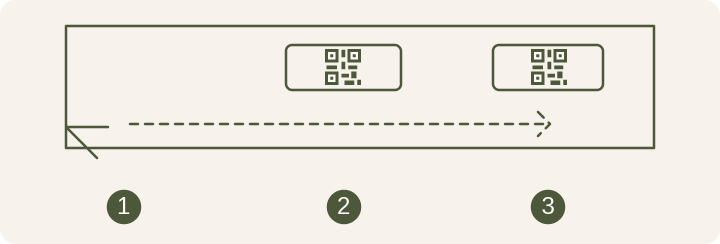
Walk from the entrance to the order point and then the counter as a customer would. An entrance sign might link to the menu or shop details. At the order point, use the menu or LINE official account link; keep the payment sign where people actually pay. Decide each destination before making the code, and label what it opens.
Say what the code opens
‘Scan here’ does not say what will open. Label a menu sign ‘Scan for the menu’ and a shop LINE sign ‘Add us on LINE.’ If menu and payment signs share a counter, give them separate signs and labels. Before printing a batch, ask someone unfamiliar with them what each sign does.
| Job title | Example destination | What to test |
|---|---|---|
| Storefront window | Menu or opening hours | Try in direct sunlight and with the lights on |
| Order counter | Menu or LINE Official Account | Customers can scan without blocking the queue |
| Checkout | Payment QR code | The recipient and amount match the purchase |
Scan from where customers stand
Once installed, scan the sign with a phone that is not signed into the shop's account. Glass reflects light differently in daylight and under shop lighting, so test both. If anyone can reach the payment sign, check regularly for a QR sticker placed over it. The FTC warns that QR codes can be replaced with links to harmful sites. For payments, check the recipient name and amount in the banking app before confirming. A successful scan does not verify the recipient.
Stand in the queue and try it yourself. If scanning the menu blocks the walkway, move the sign where it is visible and scannable from the line. If people must reach across the counter, the sign may be too far away.
Read how to check a PromptPay QR code before use
Keep the files and links for replacement signs
Keep each image with its destination link and a location-specific name, such as ‘entrance menu’ or ‘counter payment.’ Editing a page without changing its URL leaves its QR link intact. If the encoded link or payment recipient changes, make a new code and sign, and remove the old sign from use.
Choose a QR code size for the sign