
Create a PromptPay QR Code with KrobClick: Set the Amount and Check the Recipient
A successful scan is not a reason to share the QR or send a payment yet. Open the file in a banking app to check the recipient name and amount. The tool can create and check the QR data, but only the bank can identify the account holder.

Use your actual registered number
Before opening PromptPay QR generator, confirm which identifier is linked to your own PromptPay account. The tool uses the entered number to make a receiving QR code, with a set amount or an amount entered by the payer. It neither registers PromptPay nor connects to a bank to check who owns the account.
Bank of Thailand describes how PromptPay uses identifiers linked to accounts. If you are unsure which account is linked, check your banking app or ask your bank. If it is not registered, complete that step with the bank first; generating an image cannot replace it.
Fill in the information and choose whether to specify the amount or not.
- Choose “Phone number” or “National ID/taxpayer ID” to match the registered identifier.
- Enter a 10-digit Thai phone number beginning with 0, or a 13-digit number for the selected ID type. The tool checks format, not bank registration or ownership.
- For a fixed amount, enter baht, such as 125.50. To let the payer enter the amount, leave the field blank; do not enter 0.
- Click “Generate and verify QR” and review the status, partially masked identifier, and displayed amount.
- If you change the identifier or amount, generate the QR again and check the new file before sharing it.
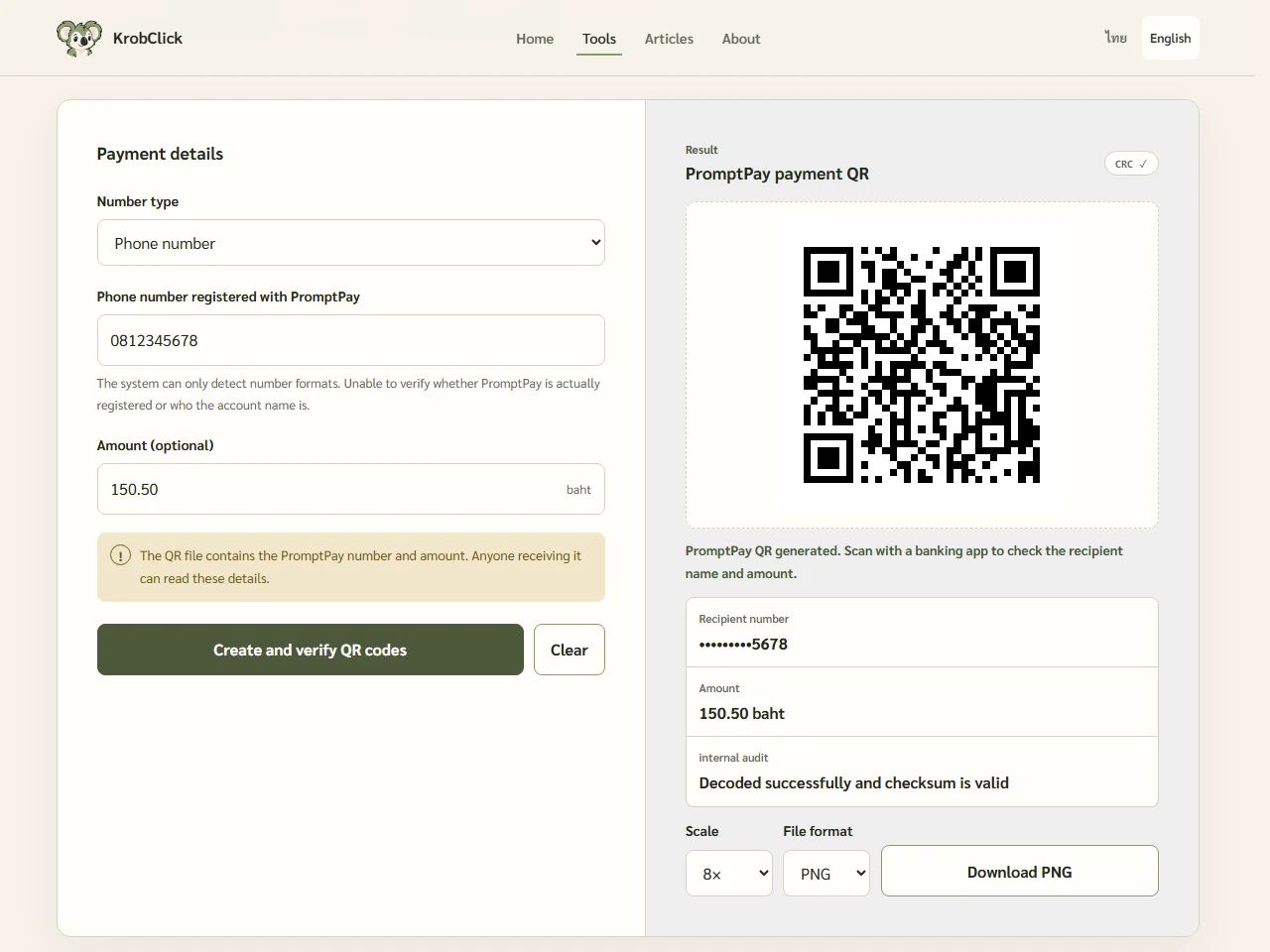
The 125.50 baht is a hypothetical amount showing both modes. Leave the amount blank for different payments; enter a fixed amount for a specific payment, then check it in the banking app. This guide does not provide a sample identifier for a real payment.
The software accepts amounts greater than 0 up to 999,999,999.99 baht. That is a software boundary, not a bank-approved transfer limit. More than two decimal places triggers an error rather than automatic rounding. Check the original amount before entering it; a QR code cannot decide your accounting rounding policy.
What do successful decoding and a valid checksum establish?
| Test results | What it can indicate | What it cannot yet tell you |
|---|---|---|
| The image can be decoded | The system's decoder reads data from the generated patterns. | Every banking app will work in all lighting conditions |
| Checksum is correct. | The data passed checksum consistency validation | Who owns the number, or whether it is registered |
| There are numbers and amounts in the results. | Check the data that the tool can generate. | A transfer occurred or money was received |
Scan the downloaded file in a banking app before publishing it. Check the recipient name and amount against what you intended. You can stop before confirming a transfer; you do not need to pay to see the name. The Bank of Thailand’s Digital Literacy guidance also advises payers to check the recipient and amount before completing a payment.
If the name is wrong or the app cannot scan the code, do not use that image. Check the identifier’s bank registration first. KrobClick cannot change bank records or verify the recipient’s identity for the bank.
Choose a file and check the output before sharing
Choose 4×, 8×, or 12× and PNG, JPG, WebP, or SVG to suit the destination. PNG is a good starting point when you need crisp QR edges. This tool’s SVG is generated from the QR matrix and works in vector-capable programs; it is different from an SVG that merely embeds a PDF-page image.
Leave a blank margin around the code, do not crop to its edges, and scan it again after layout or printing. You can inspect its data first with QR reader, but decoding does not establish the account holder’s name. For sizing and margins, see the QR guide
What information does QR reveal and what does it not reveal?
The results page masks some digits, but the QR file contains the PromptPay identifier and any amount you set. Anyone with the image can decode it. Think about who will receive a QR containing a personal identifier, and do not change or distribute someone else’s QR without permission.
KrobClick generates the QR in your browser; your banking app is a separate service. The tool does not track payments, notify you of incoming money, or issue a receipt. To confirm you have been paid, check transactions through your own bank. A slip image or a “QR generated” message is not confirmation.
Sources
- Bank of Thailand: PromptPay
- Bank of Thailand: Digital Literacy and checking recipients before transferring
- KrobClick: PromptPay tools page
- KrobClick: Check number format and generate payload.
- KrobClick: QR readback and export
Tool page and code reviewed October 21, 2026. The screenshot is before number entry. No bank account-name verification, transfer, or receipt of real funds was tested. This is not personalized financial, legal, or tax advice.