
What size should a QR code be?
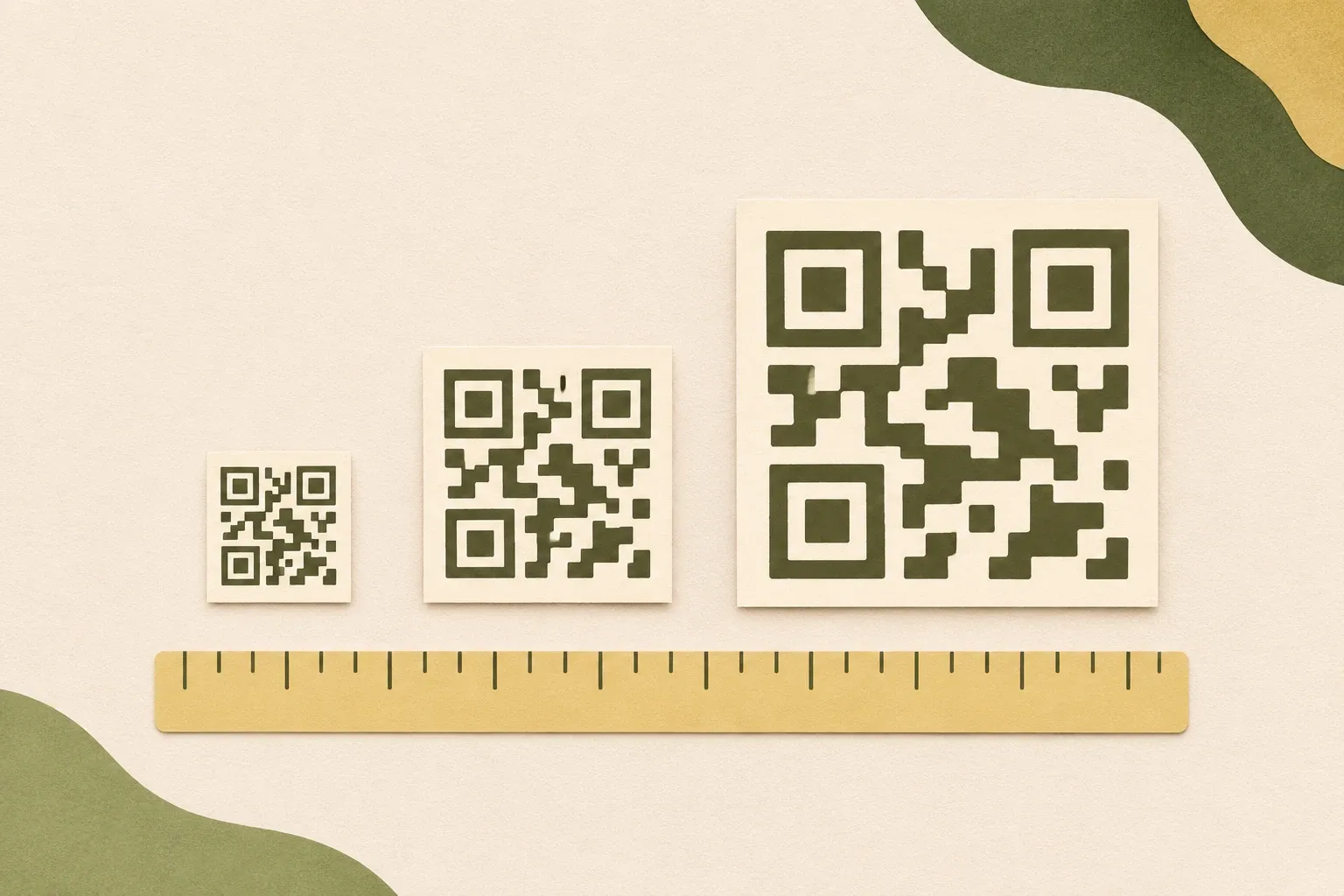
You can bring a business card closer to the camera, but not a sign behind a counter. A size that scans in your hand may be too small from farther away. Calculate the size including the margin, then test it on the intended material.
How far away will people stand when scanning?
Stand where someone would actually hold up their phone. You can bring a business card closer to the camera; a sign behind a counter must work from the other side. A window sign may catch glare. Note the rough distance and lighting for your print test. Do not choose a size based on the screen image alone.
Calculate the pattern size with its clear margin
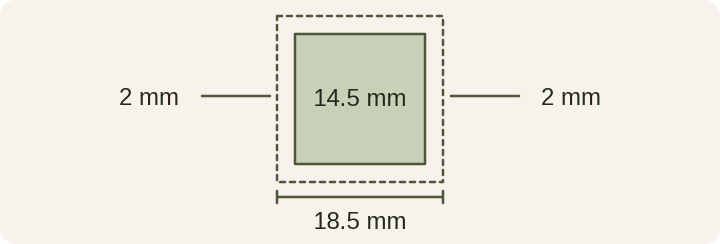
Each small square in a QR pattern is called a module. DENSO WAVE says to leave a clear margin of at least four modules on every side. Suppose the pattern is 29 modules wide and each module is 0.5 mm. The pattern is 29 × 0.5 = 14.5 mm wide. Each side margin is 4 × 0.5 = 2 mm. The total width is (29 + 4 + 4) × 0.5 = 18.5 mm. The top and bottom margins work the same way, so the total height is also 18.5 mm.
Measure the clear space outward from the pattern on every side, not just left and right. If the downloaded image already includes a margin, measure the image's outer edge. Check the page layout again for text or images intruding on that space. The 18.5 mm figure illustrates the calculation; it does not guarantee scanning at every distance.
Print two sizes and test them
The 18.5 mm example includes the margin, but only a physical print can show how far away it will scan. Print the same QR at two sizes on the intended material, keeping colors, paper and destination the same. Scan from the same spot. If possible, try more than one phone.
| Printed item | Where to stand | What else to check |
|---|---|---|
| Business card | The distance you would normally hold it to read | Text does not crowd or enter the clear margin |
| Counter sign | Where customers stand to pay | The phone can read it without reaching over the counter |
| Storefront sign | The farthest intended scanning spot | Does sun or window glare obscure the pattern? |
Check the margin in the layout before printing
Make sure cut lines, text and background artwork do not intrude on the clear margin on any side. When you get a proof, measure its actual size against the layout. If the file scans on screen but the printed sign does not, check whether it was shrunk, cropped or placed in glare.
How to troubleshoot a QR that scans on screen but not on the sign
If you still need to create the QR, read KrobClick's guide to creating QR codes. Then scan both the downloaded file and the printed result before using it.