
NotebookLM Workflow: Compare Sources and Verify Citations
NotebookLM can summarize a stack of documents neatly without telling you which version is current or where they disagree. In this hypothetical workshop-planning example, ask narrower questions and open the evidence before using the summary.

Start with the question to answer instead of summarizing everything
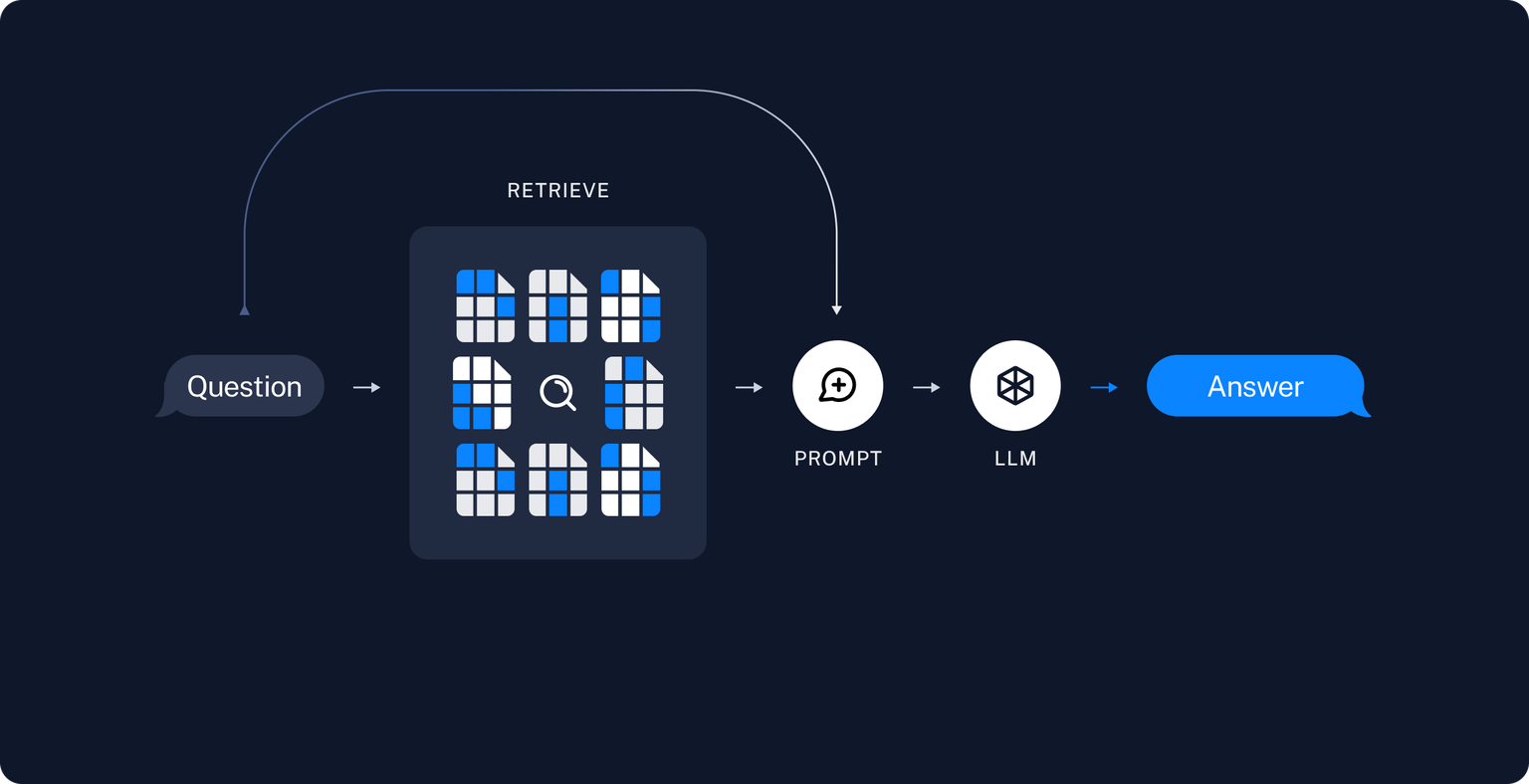
NotebookLM lets you ask questions about selected sources, such as multiple manuals or meeting notes. Before adding files, write down the decision you need to make and the evidence it requires. That makes it easier to trace answers than asking for a summary of everything.
Product-name note as of 14 October 2026: The Google Help pages linked from NotebookLM and consulted here call the product Gemini Notebook. We retain the familiar NotebookLM name without tying this method to button locations or plan entitlements that may change.
Google’s chat help page explains source selection and opening citations to referenced passages. This workflow assumes questions about selected sources. If you use web search or other modes, check whether the answer still draws only from those sources.
Make an inventory of your sources before you start asking questions.
First record each file’s name, owner, date, version, and reason for inclusion. More files do not help if an old copy sits beside the approved one. Names such as “draft schedule” and “approved schedule” make it easier to see which version an answer used.
The table uses hypothetical workshop-team documents, not actual KrobClick files.
| Sources | What it answers | What remains inconclusive |
|---|---|---|
| Approved schedule | Activity time and topic | Actual cost |
| Venue provider proposal | Items and conditions offered | Confirmation of booking or payment |
| Meeting notes before the plan change | Previously discussed reasoning and alternatives | Latest resolution if there is a newer document |
Before adding files, review permissions and remove unnecessary information, especially participant names, phone numbers, and confidential proposals. Google’s service is external; it is not KrobClick’s browser-only file processing. Read the policy for the account you use rather than assuming personal and organizational accounts handle data alike.
Use three passes: extract, compare, and identify gaps
First, locate the information: Ask “From the approved schedule, list activities requiring equipment, with the activity name, equipment specified, and supporting passage. If none is specified, say not found.” This reveals both what the document says and what it leaves open.
Next, compare documents: Ask “Compare the start time in the schedule and meeting notes. Show each passage and document date; do not choose which version governs.” If they differ, the owner must confirm using the authoritative document rather than the AI’s confidence.
Finally, find gaps: Ask “What information needed to confirm readiness is missing from the selected sources? Separate documented facts from questions you propose.” An AI-generated question is a prompt for review, not evidence that a problem exists.
This three-pass method is KrobClick’s proposed workflow, not a NotebookLM feature name. The same reasoning can apply to other systems that let you select and inspect sources.
Check the citation to see if it supports the whole sentence or just part of it.
- Pick claims whose errors would affect the work, such as dates, times, scope, or cancellation terms.
- Open the citation and read the full passage, including the preceding text and any notes.
- Check the document name, version, and date. Similar filenames are not enough.
- Separate what the source establishes from the AI’s inference. Rewrite a claim if the citation supports only part of it.
- Record “confirmed / conflicting / not found” with a location in the original document.
Suppose a source says “The venue holds no more than 40 people,” but the AI answers “40 attendees have confirmed.” A citation about venue capacity cannot support a confirmed-attendance claim, even though both use the number 40.
If a claim uses a figure from a PDF, open the original page and check its units rather than trusting extracted text alone. See the AI PDF summary verification guide
Do not assume sources always update to match the latest original
Google’s source help page distinguishes import methods and limits by source type. Before calling an answer current, compare the notebook’s copy with the live source. If the original changes, check how to update that source type; do not assume every file or site syncs automatically.
A team note might say “Checked against the approved schedule dated 10 October; venue confirmation not yet received.” That makes the open item visible. If you remove an outdated source from the question set, retain historical copies where team policy requires them.
Keep a decision list with traceable evidence
For this hypothetical task, separate “confirmed from documents,” “conflicts,” “questions for the owner,” and “team proposals.” If you turn the result into audio, a diagram, or a handout, verify it against the source again. A new format does not improve the evidence.
Start with a few traceable files, ask the decision-relevant question, and follow its citations. A fuller notebook is not the goal. For this task, a useful answer says what supports it and what remains unknown.
Sources
Sources reviewed October 14, 2026, Thailand time. Thai examples and prompts are KrobClick proposals, not product tests. Features and settings vary by version/account. Check originals and outputs before real use.