
Convert PDF to images with KrobClick: choose formats and resolution
Someone asks for an image, but your document is a multipage PDF. You don't always need to convert the whole document. Select the pages first, then choose JPG, PNG, and a resolution that suits the job.
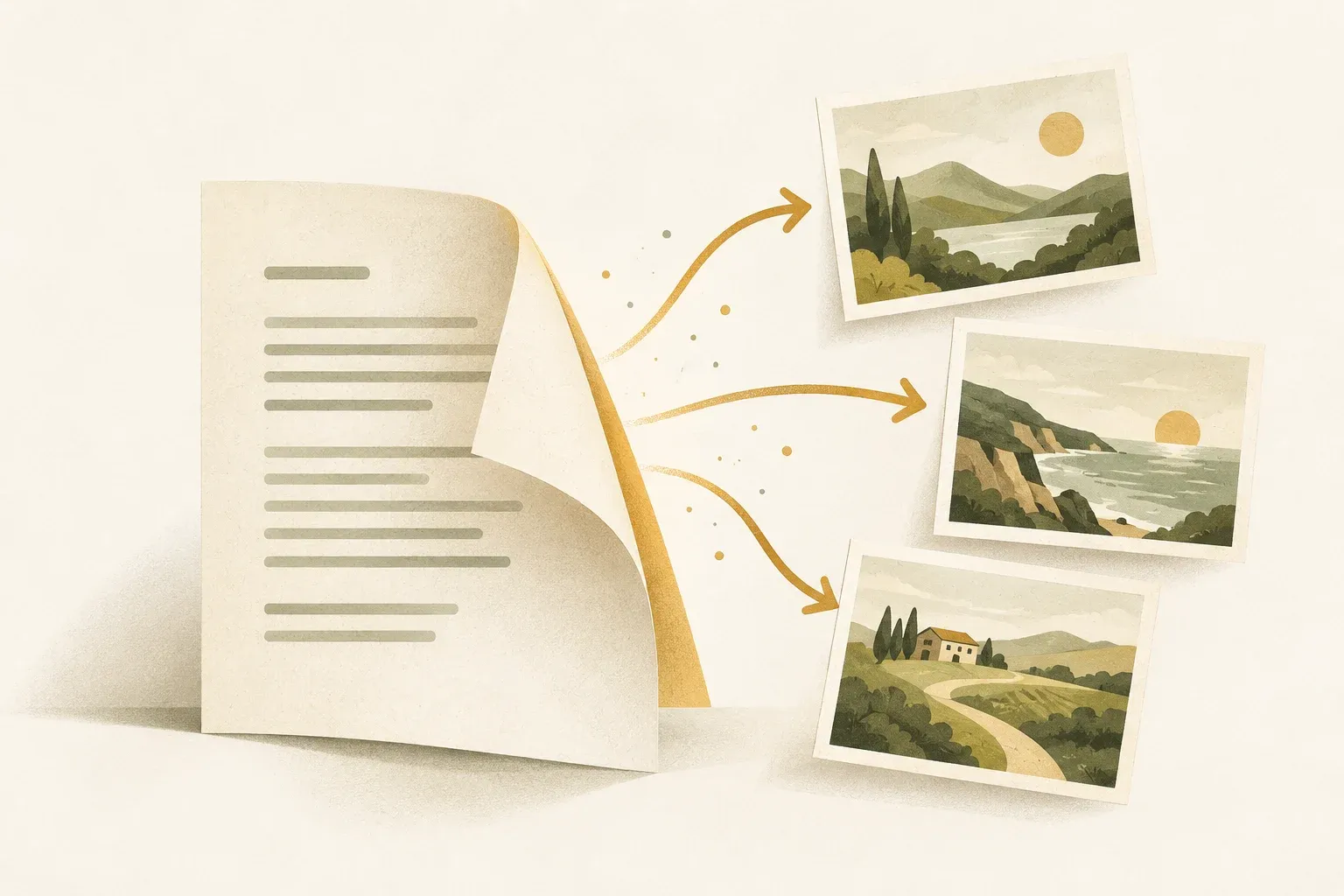
Produces full-page images, not original embedded pictures
PDF to images tool renders everything on the selected page into one image: text, tables, and pictures. That works when you need an image of the page's appearance. It does not extract an embedded photo's original file; the result can include the surrounding page and differ in resolution.
Once it's an image, you can't select text from the PDF's original text layer. The tool adds no OCR. Keep the original PDF if the recipient needs to search text, fill a form, or verify a digital signature. Read Scanned PDFs and OCR if you need searchable text.
Select pages and configure settings step by step
If you need one page from a longer document, first practice with a file that contains no personal information:
- Choose one PDF. The tool page sets limits of 100 MB and 500 pages. Unlock password-protected files first.
- Wait for the thumbnails and select the pages you need. If you use “Select all,” check the selection again.
- Choose an image format. Start at the default 144 DPI, then open the result and see whether the text is legible.
- Formats with a quality slider start at 90%. That controls compression; it doesn't guarantee 90% sharpness.
- Download selected pages, or download all if you need the entire document.
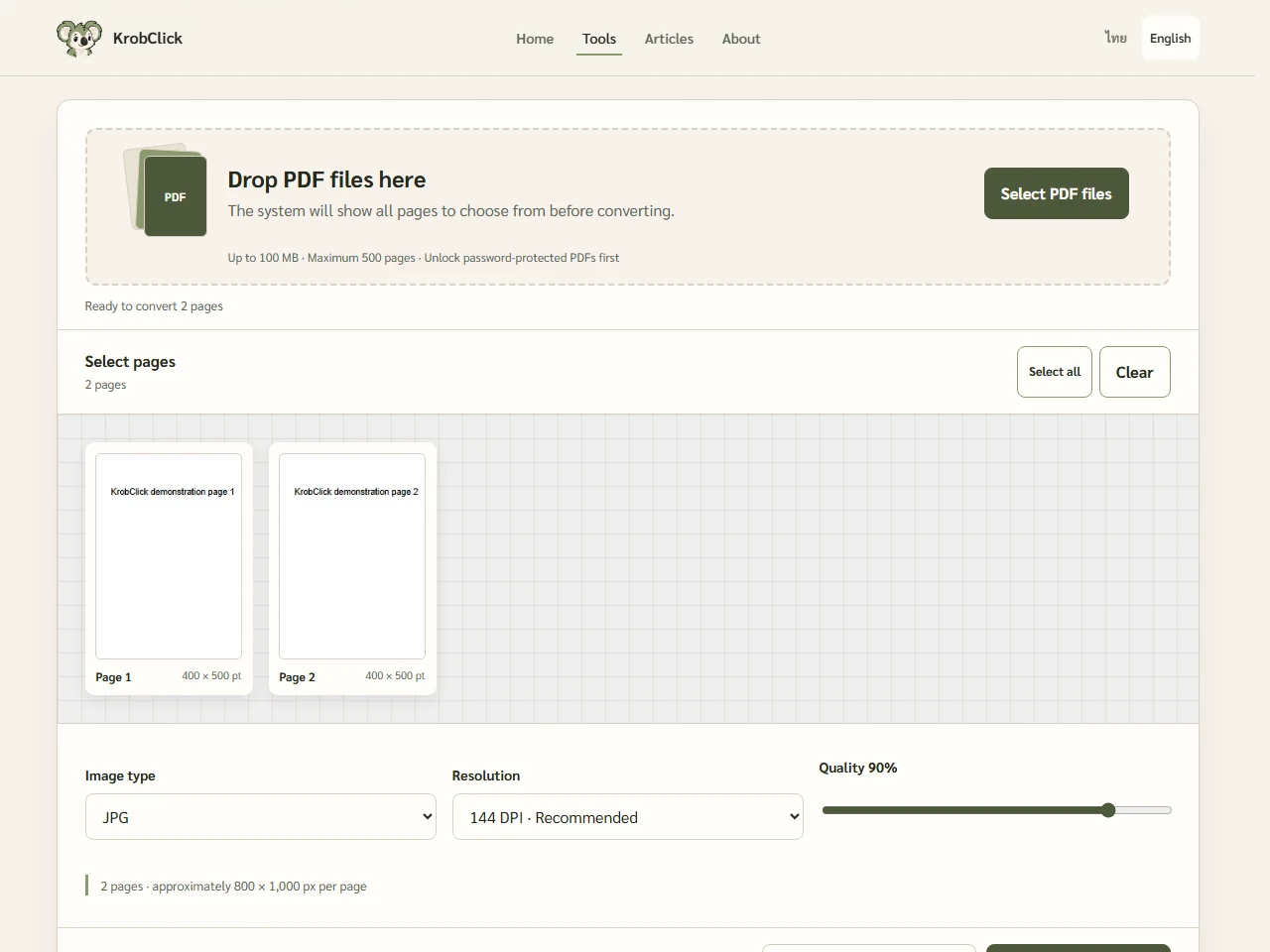
For a two-page document where you only need page two, select it and download the selected page as a single image. Multiple pages come in a ZIP. If the destination accepts images only, unzip it first; renaming a ZIP to JPG won't turn its contents into one image.
What is the difference between JPG PNG WebP and SVG?
| File format | Ideal starting point | Things to know |
|---|---|---|
| JPG | The recipient accepts JPG, or you want to adjust compression | Compression may introduce artifacts around small text |
| PNG | Pages with text, tables, and fine lines | The file may be larger; compare the actual output. |
| WebP | The recipient accepts WebP and you want to compare its size with JPG | Check the receiving system first; some destinations do not accept WebP. |
| SVG of this tool | The destination specifically requires an SVG container | Contains an embedded PNG of the page, without separate editable vector objects |
Some output formats depend on browser encoding support. This tool's SVG is unlike the QR generator's SVG: it embeds a PNG of the page. Enlarging it won't add detail, and the words aren't separately editable vector objects.
DPI increases resolution and memory load.
Resolution options are 72, 144, and 216 DPI. Moving from 72 to 144 doubles both dimensions, roughly quadrupling the pixels. The file size needn't quadruple: content, format, and compression quality matter too.
Take a sample page measuring 280 × 400 points: at 72 DPI it becomes 280 × 400 pixels; at 144 DPI, 560 × 800 pixels, using DPI ÷ 72. Higher DPI can render vector text in more detail, but it cannot repair an already blurry scan.
The tool also limits each page to 25 million pixels and each export batch to 120 million pixels, in addition to the file-size and page-count limits. On a memory warning, select fewer pages or lower the DPI before retrying. Your device may run out of memory below those software limits.
Check downloaded files and troubleshoot common issues
Don't rely on the thumbnail. Open the download at its intended size and inspect page numbers, small text, tables, signatures, and a scanned QR code. If text edges show artifacts, try PNG or raise quality before jumping to maximum DPI. If the image exceeds the destination's limit, lower DPI or use Image converter and compressor next.
The output filename includes the original page number, but open the image and check its contents too. If conversion fails, try opening the PDF in a reader to see whether it is damaged, password-protected, or another file type with a PDF extension. This tool cannot repair a damaged PDF.
Reading and conversion happen in your browser. Download the result before closing the page. If you only need to reorder or delete pages while keeping a PDF, use PDF Editor instead of converting to images.
Sources
KrobClick tool and code reviewed October 21, 2026 using nonsensitive demo text and documents. Screenshots show local development. Scope and limits may change; inspect output files or text before use.