
How to create a QR code for a location
A delivery driver might find the right building and still wait at the wrong door. A QR code shares a map link, but a misplaced pin still sends them to the wrong spot.
Choose a destination that matches the entrance
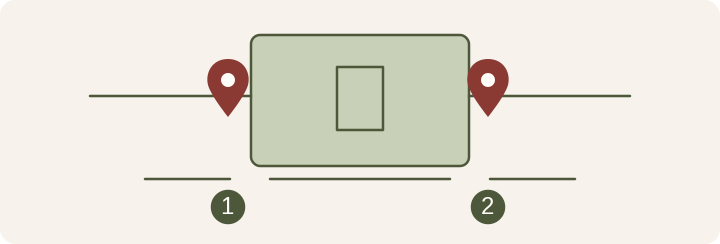
Imagine a shop with a front door and an entrance by the car park. A search may find the right building even though deliveries belong at the car-park entrance. Choose a pin near the intended pickup point and write the door name or a landmark beside the code. The map alone may not identify the usable entrance.
Create a QR code from a Google Maps link
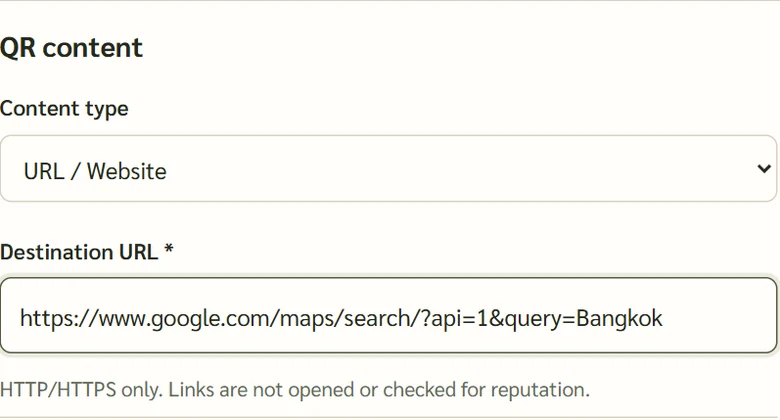
In Google Maps, select the place or pin, choose Share and copy the link. Open it in a private window to see what someone outside your account sees. In KrobClick's QR Designer, select URL / Website and paste the HTTP/HTTPS link. The designer encodes your link; it does not check the entrance. Inspect the encoded content and scan the downloaded file again.
Should you link to a pin or directions?
A place link lets people see the destination and choose their own route. To open directions immediately, use a Google Maps Directions link with a specified destination. Google Maps URLs documentation distinguishes place links from directions links. Neither guarantees that the suggested entrance matches your meeting point. Check the route's endpoint and add directions to the sign if needed.
For several branches, keep each link with its branch name and scan the code in every sign layout. Checking only a list of links will not catch images swapped while laying out the signs.
Scan the code and check the destination
Ask someone who has never visited to scan the image or printed sign on another phone and tell you which entrance they would use. If they choose the wrong one, add a note such as ‘Use the car-park entrance.’ If the code opens the wrong pin, fix the link and generate a new code before sharing it. A printed image still contains its original link; editing the designer will not change it.
Read KrobClick’s QR code guide