
Fix garbled Thai CSV in Excel and preserve leading zeros: KrobClick guide
CSV files from other systems may show garbled Thai in Excel and lose leading zeros in product codes. This article separates symptoms and checks them step by step before saving.

Garbled Thai CSV text often means the program's character encoding does not match the file
If Thai text looks garbled in Excel, do not overwrite the CSV. A CSV is a delimited text file, not an Excel workbook such as .xlsx. If the file is UTF-8 but Excel interprets it using another encoding, Thai characters can become garbled. Instead, try importing through Data → Get Data → From Text/CSV and select the source file's encoding rather than repeatedly opening it by double-clicking.
Microsoft Support explains that Excel can open UTF-8 CSV files with a BOM where supported, and recommends importing through Power Query for files without one. Garbled Thai text does not, by itself, prove the file uses UTF-8.
Distinguish garbled text, misplaced columns, and changed identifiers
| Symptom | Possible causes to check | First approach |
|---|---|---|
| Thai text is garbled | Incorrect input encoding | Re-import and select encoding. |
| All data piled up in one column. | The comma, semicolon, or tab separator doesn't match. | Choose the delimiter in preview |
| Code 00123 becomes 123 | Excel converts codes to numbers. | Set the column to Text before loading. |
First inspect the file in a text editor that supports its encoding. If Thai reads correctly there but not in Excel, revisit the import settings. If you already overwrote a garbled file, return to the original or a backup; converted data may not be recoverable from that file.
Steps to import Thai language CSV into Excel without destroying the original
- Back up the CSV and open a blank Excel workbook instead of double-clicking the file.
- Go to the tab Data → Get Data → From File → From Text/CSV (Menu names may vary by version and language), then select the file
- Inspect the preview. If Thai text is garbled, set File Origin or encoding to UTF-8 when the file is known to be UTF-8. If it is still incorrect, check the source system's encoding before trying others.
- Check the delimiter to separate columns correctly, such as commas or semicolons, and then use Transform Data if you need to set data types for individual columns.
- Set postal codes, product codes, reference numbers, and other identifiers with leading zeros to Text before loading the sheet, so Excel does not interpret them as quantities.
- Examine multiple rows of sample data, including Thai language, numbers, dates, and columns with commas within the text. Then save the result as
.xlsxto preserve assigned data types and formatting
Microsoft: Keeping leading zeros and large numbers warns that Excel may remove leading zeros and display long numbers in scientific notation. Set identifier columns to Text during import.
In Power Query, inspect the Changed Type step. If it has converted identifiers to numbers, remove or change it and set the original column to Text. Turning 123 into text later will not restore 00123, nor will it recover digits already rounded from a long identifier.
What is the difference between UTF-8 and UTF-8 BOM?
UTF-8 encodes text. A UTF-8 byte order mark (BOM) at the start of the file consists of the bytes EF BB BF. Some programs use them to identify the encoding, as the Unicode Consortium explains. UTF-8 files do not require a BOM, and adding one cannot repair Thai text that has already been corrupted.
For an Excel version or system that expects a BOM, sending UTF-8 with BOM may help it open the file correctly. Other importers require UTF-8 without one. Check the receiving system's requirements instead of adding a BOM to every file.
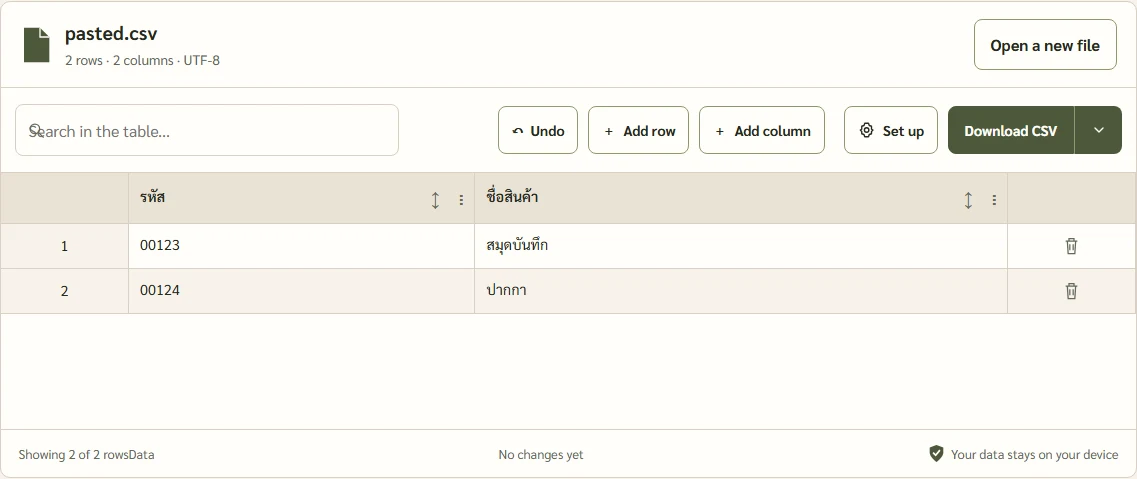
Hypothetical example: Two-column CSV that requires both language and code to be checked.
Suppose the original file contains the following text. The numbers are identifiers, not quantities:
รหัส,ชื่อสินค้า
00123,สมุดบันทึก
00124,ปากกา
After import, you should see two columns headed 'รหัส' (code) and 'ชื่อสินค้า' (product name), with readable Thai names and 00123 still retaining its two leading zeros. If you see only '123', Excel has treated the identifier as a number even if the product names look right. This is an illustration, not a test result from a particular Excel version.
Precautions when saving back to CSV
- CSV does not preserve fonts, colors, multiple sheets, or workbook data types. Formula cells are exported as displayed values, not workbook formulas. If you need to continue editing, also keep an
.xlsxcopy. - Saving with the wrong encoding can lose text. Keep the source and reopen the exported file to check it.
- Follow the destination system’s delimiter and encoding requirements. UTF-8 with BOM is not suitable for every importer.
- Data that contains commas in a single field must be enclosed in quotation marks according to the CSV format used, or the column may shift, even if the encoding is correct.
Check three things before using CSV: language, columns, and data types.
Keep the original CSV and import a fresh copy. In the preview, check whether Thai is readable, columns split correctly and 00123 remains text. Reopen the saved output too: not every conversion error produces a warning.
Sources
- Microsoft Support: Opening CSV UTF-8 files correctly in Excel
- Microsoft Support: Keeping leading zeros and large numbers
- Unicode Consortium: UTF-8, UTF-16, UTF-32 and BOM FAQ
Based on developer documentation and standards, without testing a specific Excel version. Menus may differ by operating system and version. Keep the original before importing or overwriting.