
Create Animated LINE Stickers with KrobClick: Arrange Frames and Check ZIP Files
Have poses ready but need them to play in order and export as a complete pack? LINE Animated Sticker Studio edits frames, sets timing, and creates a ZIP. This guide also shows what its validator cannot judge for you.
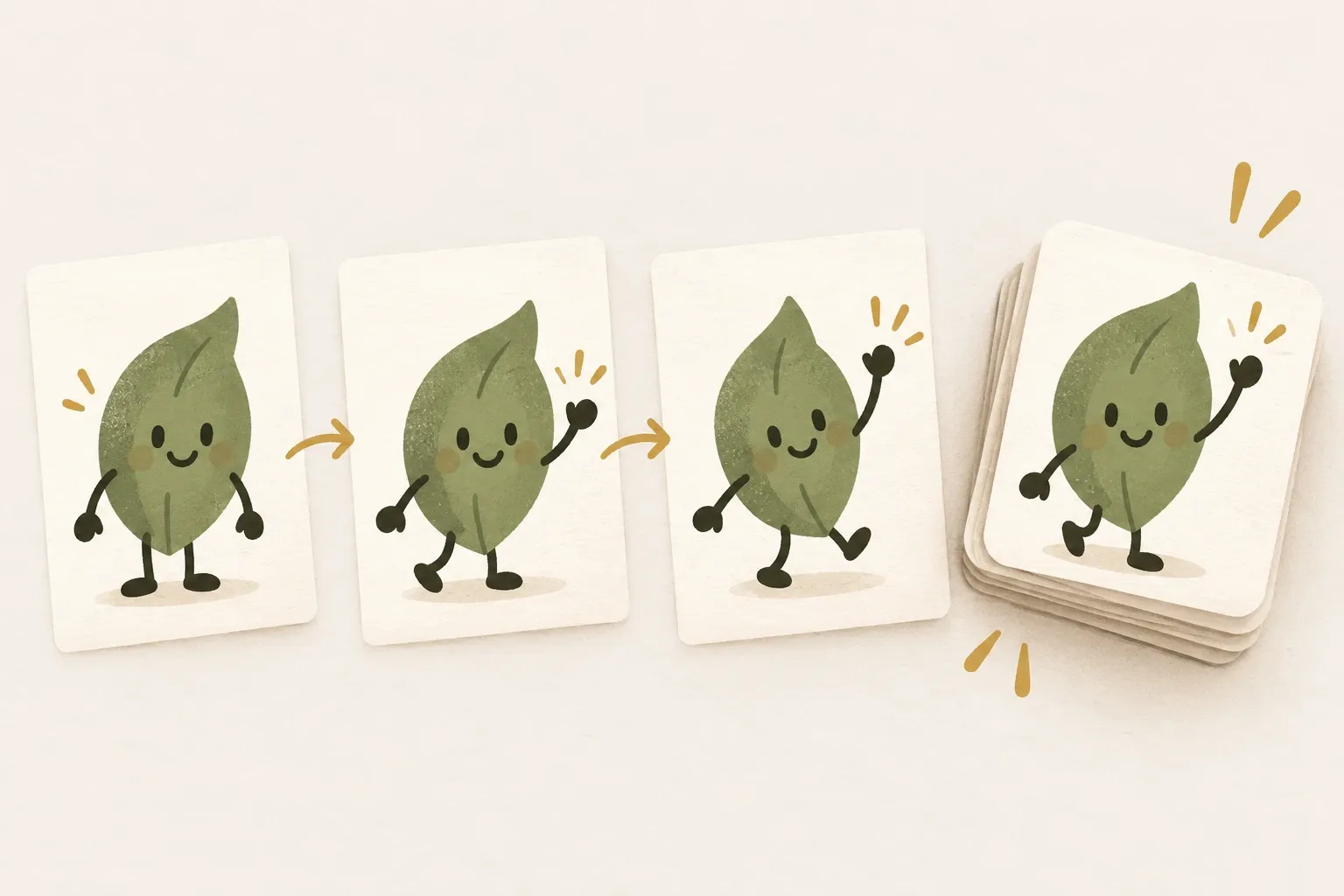
Start with multiple still poses rather than extracting GIF frames
Start in LINE Animated Sticker Studio with still PNG, JPEG, or WebP images. Each slot is one sticker with its own timeline. Prepare different poses, or duplicate a frame and move its objects yourself: Studio does not generate in-between poses or split video, GIF, or APNG into frames.
For stickers that do not move, use the LINE Static Sticker Studio guide. For general GIF/APNG work with individual frame timing, use the Guide to combining images as GIF or APNG. Producing an APNG alone does not make a pack ready for LINE.
LINE’s guidelines allow animated packs of 8, 16, or 24 stickers plus a main and tab image. The table shows Studio’s fixed export sizes. LINE’s sticker limit is 320 × 270 px, with at least one side measuring 270 px or more.
| Files | Formats and dimensions from Studio | Where to select |
|---|---|---|
| 01.png onwards | APNG 320 × 270 px | Every frame in each slot |
| main.png | APNG 240 × 240 px | Slot selected with M |
| tab.png | PNG still image 96 × 74 px | First frame of the slot selected with T |
Remove backgrounds from source images first. Studio accepts source files up to 20 MiB each and 60 MB per addition; resized frames stored in the project total at most 60 MB. It scales images proportionally onto a 320 × 270 px canvas. Keep the high-resolution originals.
Select a slot before adding images, then edit the selected frame
- Choose the sticker count above, then select a slot from the left-hand thumbnails, such as Sticker 01
- Select “Add frame” to import still images into the selected slot. You can add more images later, up to 20 frames per slot. Check their order on the timeline after each import.
- Select a frame thumbnail below the canvas. The Images tab adjusts size, rotation, and X/Y position for that frame. Fit to Canvas restores the image to fit the frame.
- Open the “Text” tab to enter up to 4 lines and adjust size, color, or position. Text is stored separately per frame, so check other frames for the text you want too.
- Use “Duplicate frame” to start with existing images and text, then move or edit the copy. “Delete frame” removes the selected frame. Undo and redo help reverse changes.
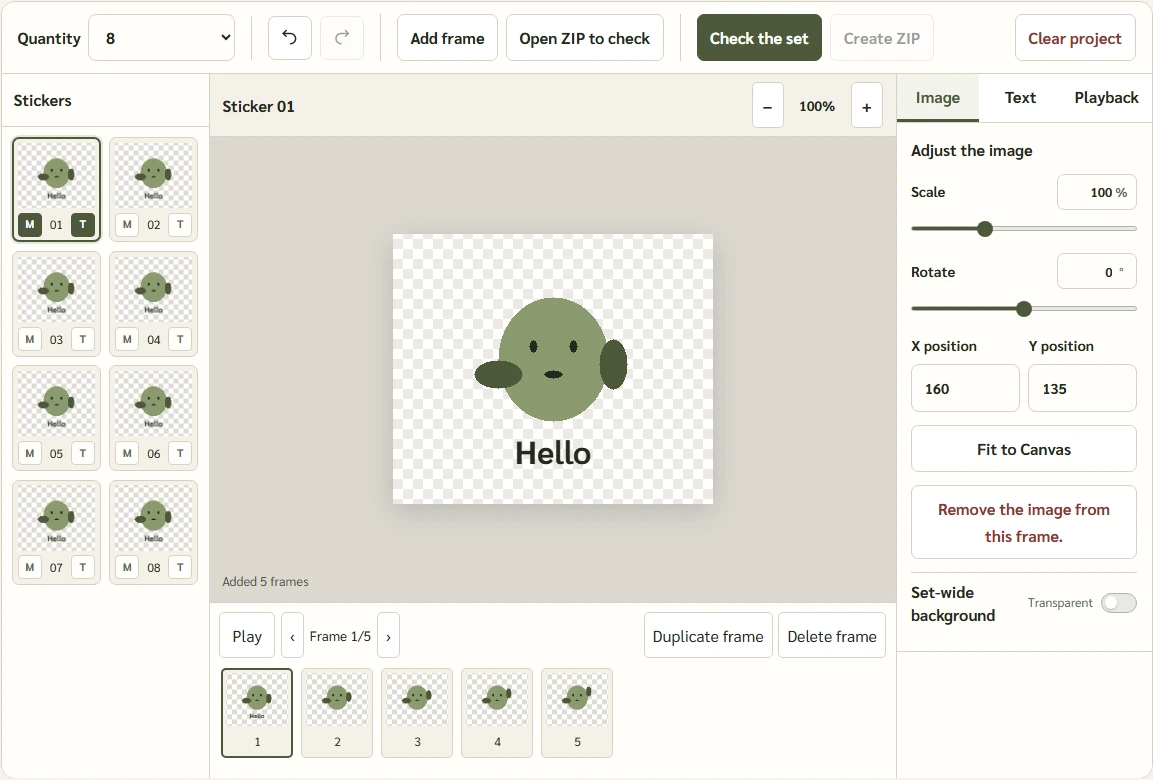
To reorder frames, drag a frame thumbnail or focus it and press Alt with the left or right arrow. Dragging a sticker thumbnail on the left moves the whole slot, including frames and settings. Check which level you are moving before you drop.
Studio stays 1152 px wide even on a small screen. Scroll sideways inside it for controls, or focus the region and use arrow keys. Play and previous/next sit left of the timeline; Duplicate frame and Delete frame sit right. While playing, Stop pauses on the current frame. The preview returns to frame one after all loops.
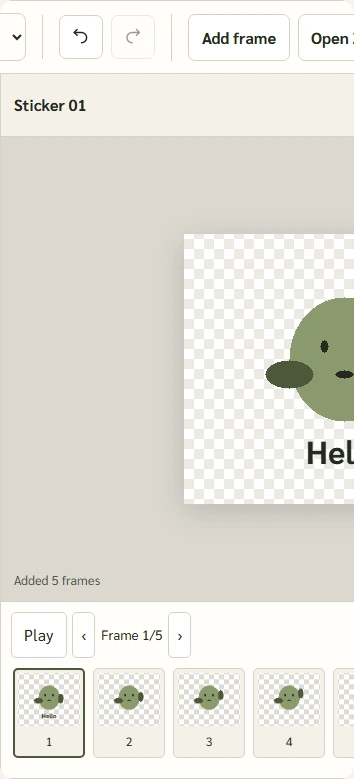
For a text-only frame, first add an image and type text. Then choose Remove image from this frame on the Image tab. Text stays; duplicate the frame and change its text or position. A frame with neither image nor text on the canvas fails validation.
Playback time per loop multiplied by loop count must not exceed 4 seconds
Open Playback for the selected slot and choose seconds per loop and the number of loops. LINE requires 5–20 frames per sticker, with 1, 2, 3, or 4 seconds per loop and at most 4 seconds across all loops.
Hypothetical example: 10 frames at 2 seconds per loop, played twice, take 2 × 2 = 4 seconds. Studio divides the time approximately evenly, about 200 ms per frame. Three loops would take 6 seconds and fail; reduce loops or seconds.
Studio cannot set individual frame durations. Identical frames throughout also fail, even with valid counts and timing. After duplicating, change the pose, position, or text. Preview each sticker: timing is per slot.
Choose the main image (M) and tab image (T), then check their first frames
M below each thumbnail selects the source of main.png; T selects the source of tab.png. They can point to the same or different slots. Selected buttons appear pressed and follow their slots when you reorder.
main.png animates slot M at 240 × 240 px. tab.png is a still of the first frame of slot T at 96 × 74 px. Check words and expression at that small size, not just on the canvas.
LINE may display the first frame as a still. A “Thank you” sticker should not start blank and reveal its words at the end. Move an expressive frame first and check that the rest still flows.
Check the set, then inspect the exported ZIP
Once every slot is ready, turn off Whole-pack background in Image and click Check pack. Studio encodes frames and checks content, transparent area, timing, and APNG and ZIP sizes before enabling Create ZIP. Later edits require another check.
LINE requires transparency, images no larger than 1 MB, and a ZIP no larger than 60 MB. Studio enforces 1,000,000 bytes per image and 60,000,000 per ZIP. The download contains 01.png onward, main.png, and tab.png. Despite the .png names, sticker images and main.png are multiframe APNGs.
After downloading, choose Open ZIP to check names, dimensions, PNG/APNG structure, frame count, duration, and loops. It does not visually assess every frame, confirm complete background removal, or reopen an editable project. Inspect the files and test them in the destination system before submitting.
Fix the sticker in the flagged slot
- Insufficient frames: add images or duplicate and edit frames until every slot has 5–20, not just the selected slot
- Identical frames: change the images, layout, or text to make the frames meaningfully different. Adding identical copies does not create movement.
- Opaque background: turn off the set-wide background color. If a source image has a solid background, remove it from the source yourself. The tool does not remove image backgrounds, and a few transparent pixels do not prove that the area around a character is clean.
- Empty frames: select the indicated frame and check its image and text. Objects outside the canvas are not exported, and parts extending beyond the canvas may be cropped. Inspect every frame yourself.
- APNG too large: reduce detail, colors, or frames while remaining within requirements, then recheck. This cannot guarantee meeting the size cap because image content also affects size.
The work is in the browser, but the ZIP is not a project file.
Images and text are processed in your browser, not uploaded. Studio saves frames, text, order, timing, M/T, background, and zoom in IndexedDB, separately from Static Sticker Studio. A warning appears if saving fails. Return in the same browser profile; there is no cross-device sync, and browser storage cleanup may erase the project.
Keep original images and the ZIP separately. The ZIP is output, not a project Open ZIP can restore with editable text and positions. Someone sharing your browser profile may see saved work. Use Clear project to remove it locally.
Before submitting to LINE, check every first frame, the small tab image, transparency, and playback. Check rights to characters, images, fonts, and words too. KrobClick catches file problems, not content problems, and cannot guarantee LINE approval.
Requirements and tools used for inspection
- LINE Creators Market: Animated Stickers
- LINE Creators Market: Animated Sticker Creation Guidelines
- KrobClick: LINE Animated Sticker Studio
LINE requirements and the tool in PR #131 reviewed October 24, 2026. Timing and images are KrobClick demos, not LINE approval results. The tool does not submit on your behalf or guarantee approval. Check current rules before submission.