
How to use KrobClick PDF Editor: organize pages and save your PDF
Pages in the wrong order or one you should not send? Keep the original and organize a copy in PDF Editor. Check the download; remembered browser work is not a backup file.
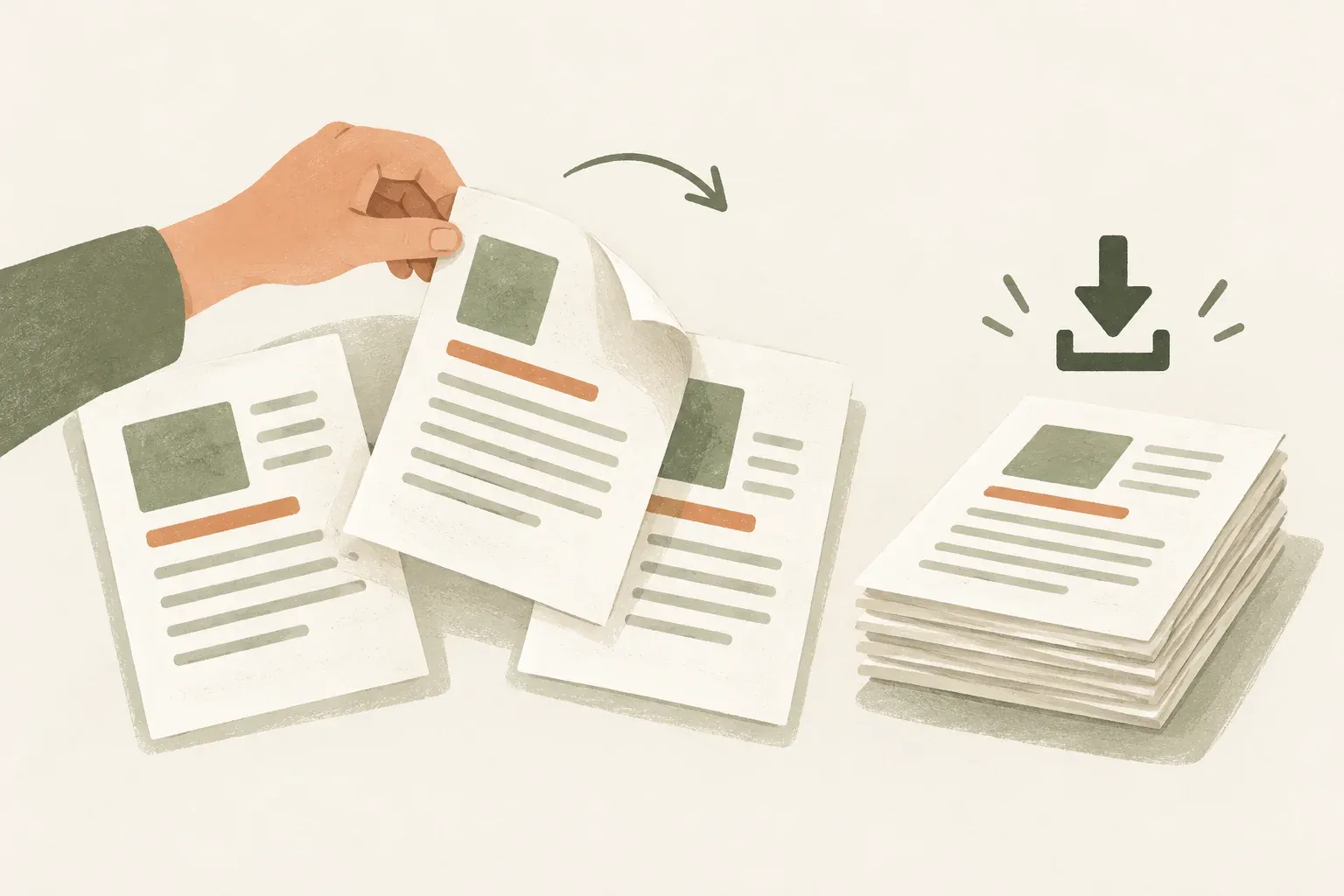
Open a file and find Organize pages
On a computer, open PDF Editor and wait for it to load. Click Open to choose a PDF. Once it appears, select Organize pages in the tool panel; open All tools first if needed.
Reorder, rotate, and delete pages, then check the result
Compare page numbers and thumbnails before editing. Drag thumbnails to reorder, rotate upside-down pages, and delete only unwanted pages. Check a multi-page selection before applying a command; it may affect every selected page.
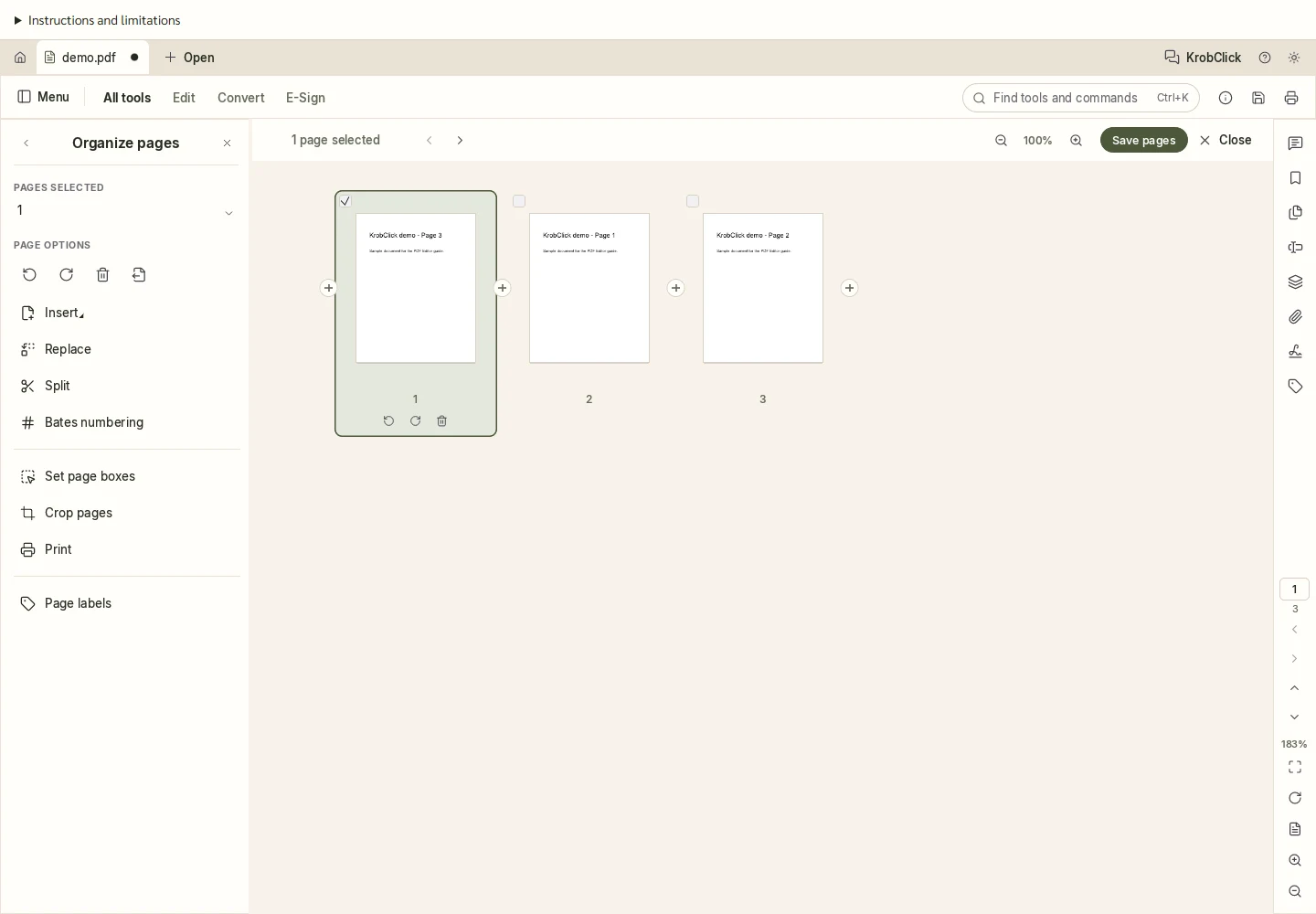
Adapted from PDFCraft v0.13.0 (MIT OR Apache-2.0). Read Licenses and credits before use.
Imagine a three-page PDF where you need page 3 followed by page 1. Drag page 3 to the front, then click the center of the original page 2 thumbnail to select just that page. Check its contents before deletion because page numbers change after reordering.
Keep the original and check the downloaded PDF’s page count and content. Deleting a page does not remove secrets on the remaining pages, such as text under an opaque box or form data. Follow the PDF redaction guide and inspect the output before sharing.
When finished, click Save pages in the organizer’s upper-right corner. The edited PDF downloads immediately.
Download the PDF and open it to check
From the document viewer, use the disk icon or Ctrl+S on Windows to download. Open the file in a PDF reader to check page count, order, orientation, and content. Keep the original until you are done.
To print, click the printer icon, choose pages and paper size, then click Print to open your browser’s print dialog.
How browser autosave differs from downloading
PDF Editor automatically remembers work in browser site data so you can return. It is not a PDF in Downloads. Download the file yourself to send or back it up.
Reopening on the same device and browser may restore documents, edits, the open page, zoom, and active tab, but not Undo history. About the last two seconds may still be unsaved. Download a backup before closing.
Recovery supports up to 32 files and 100 MB total, skipping workspaces with password-protected files. Only one tab can autosave. A warning appears if saving or recovery fails. Clearing site data removes recovery copies and work saved by other tools on this site. Private browsing or browser cleanup can also erase them.
File limits, small screens, and limitations
Select PDFs up to 50 MB each and 100 MB per selection. Processing stays in your browser without uploading files. The reusable program cache is separate from your recovery copy. Neither syncs across devices. If saving fails, download a backup.
The editor needs at least 1280 × 720 pixels of workspace. On phones, swipe sideways within it for controls, vertically over a document to scroll, tap buttons, and pinch to zoom the web page. Use a computer for dragging or continuous drawing. Browser zoom differs from document zoom. If loading fails, click Retry loading and keep the original.
Some beta commands and screen-reader workflows are not fully tested. Open Word or PowerPoint exports to check text and layout. Inspect sensitive-data removal results before sharing.
For unsearchable scans, try Scan & OCR, then Recognize text and the document language. It handles Thai and English in the browser but skips any page already containing text. With no new text, there may be no output to download. Keep the original; consider another tool. If output opens in another editor tab, save it, test search, and compare numbers with the scan.
For other tasks, use dedicated tools: Merge images into PDF to create a PDF from images, or PDF to images to extract pages. For reducing PDF size, OCR and removing sensitive data, follow the checks in each guide.
Sources
Page organization, download, and recovery were checked in the local development version of PDF Editor based on PDFCraft v0.13.0 on Chromium on 27 October 2026, using a self-created sample document. This does not validate every command or file.