
How to create a QR code for a business card
Will people scan your card to save a phone number, or to see your work online first? That determines whether the code should contain contact details or a link.
Choose a vCard or a contact page
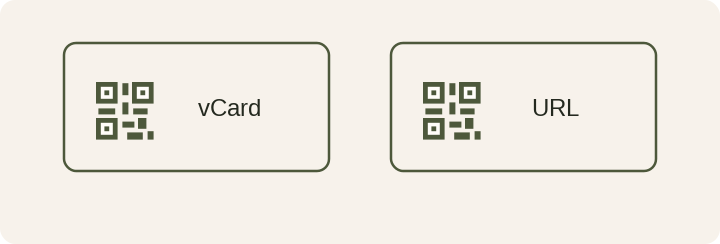
A vCard puts the name, phone number and email you enter directly into the QR image. A recipient may open them in a contacts app without typing, but anyone with the image can read them too. If your work number changes often and you manage your own contact page, you can edit that page while keeping the same QR code, provided its URL still works.
A photographer handing out cards after a job might use vCard so clients can save a number immediately. If clients should see a portfolio before choosing how to get in touch, a web page makes more sense. Neither option does both jobs equally well.
Create a vCard with your work contact details
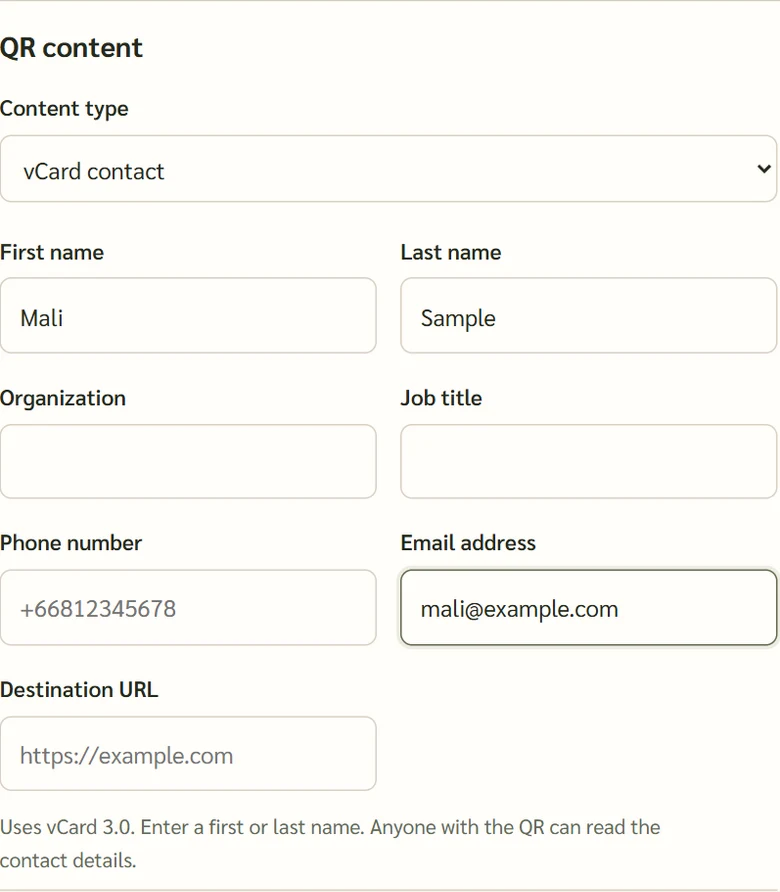
In KrobClick's QR Designer, choose vCard contact and enter at least a first or last name. Phone, email, organization, job title and website are optional. Share only what you want card recipients to know; check that you have not entered your private number instead of your work number. Print your main contact method on the card as well, in case someone cannot scan it.
Scan a proof and check the contact details
Scan the downloaded file before laying out the card. Then print a full-size sample to check that the pattern and clear margin remain readable. Try both Android and iPhone if available. Inspect the name, phone and email fields in the contacts screen: apps may interpret vCard details differently, and a successful scan alone does not prove the saved details are correct.
Allow for a clear margin before printing
Do you need new cards after changing a number?
Cards already handed out with a vCard still contain the old number. After changing it, make a new code for the next print run. A link-based code can continue pointing to the same URL if you edit that page; scan an old card to check it. If the number is also printed on the card, update the card artwork before reprinting.