
How to add a logo to a scannable QR code
A logo helps people recognize your sign, but a good-looking preview may still be hard to scan. Save a plain code first, then try different logo sizes.
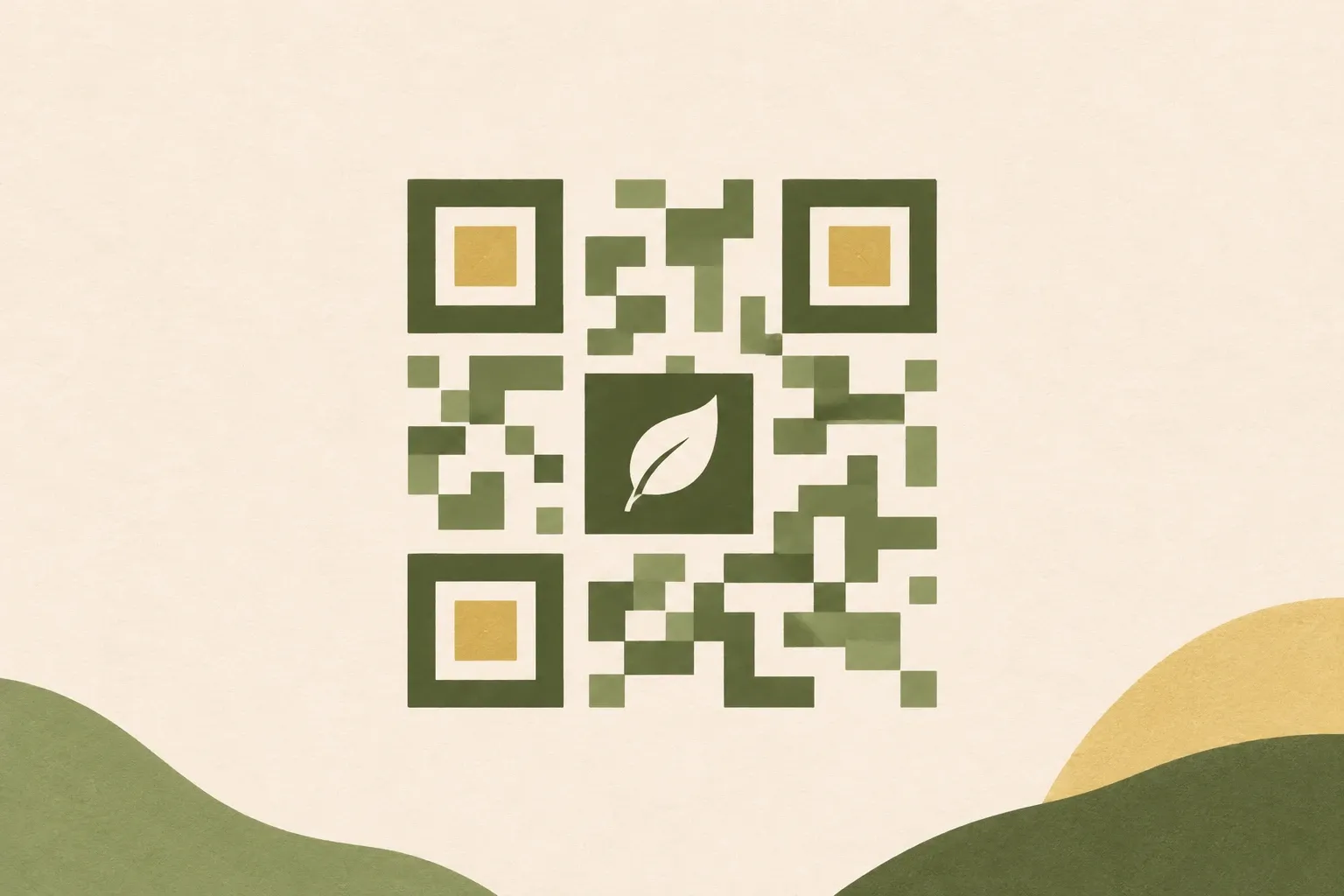
Keep a copy before adding the logo
For a coffee-shop menu, start with the real menu link and a dark pattern on a light background. Scan it to check the page, then save the version without a logo. It gives you a backup and a baseline if the logo version proves harder to read.
Start with a 10% logo
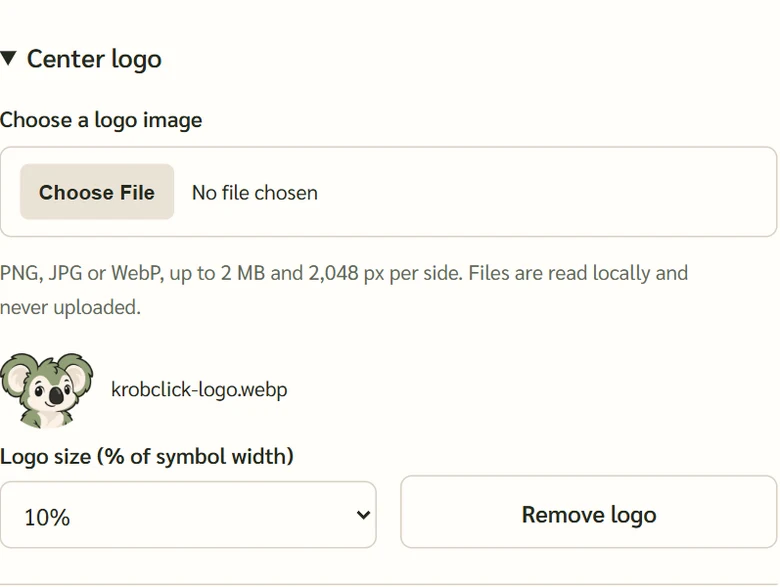
In KrobClick's QR Designer, open Center logo and choose a PNG, JPG or WebP image. The file limit is 2 MB and 2,048 px per side; it is read on your device, not uploaded. Start at 10% of the symbol width, the smallest option. That percentage is not a measure of how much damage the code can tolerate. Keep the link, colors, shapes and clear margin unchanged while comparing versions.
Check that the designer can read the generated code, then download and scan the file yourself. If the logo is too small to see, try 14% or 18%, testing again each time. Do not trim the clear margin around the code to make room for a larger logo.
Why a logo can make a code harder to scan
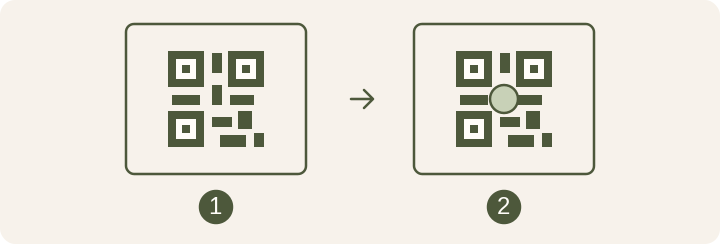
A logo covers part of the QR pattern. Error correction can recover some unreadable data, but it cannot guarantee every image will scan. DENSO WAVE measures recovery in data units, not the area covered by a logo. Two codes with a 10% logo may therefore scan differently.
If a longer link makes the pattern denser, scan a new version without the logo at the original sign size. If that is hard to read too, try a larger sign before adjusting the logo.
Scan a proof printed at full size
Print a sample at the intended size and on the intended material. Scan it from where customers will stand. If it works inconsistently, compare it with a plain code printed at the same size. If the plain one scans more easily, shrink the logo or place it beside the code, outside the clear margin. If both struggle, check the sign size, lighting and print quality.
Troubleshoot a code that will not scan